ansimage
| Crates.io | ansimage |
| lib.rs | ansimage |
| version | 0.2.0 |
| created_at | 2025-09-30 20:49:00.835687+00 |
| updated_at | 2025-12-02 00:44:30.506625+00 |
| description | Converting images into colorful terminal ANSI art. |
| homepage | |
| repository | https://github.com/xangelix/ansimage |
| max_upload_size | |
| id | 1861724 |
| size | 5,162,019 |
 Cody Neiman (xangelix)
documentation
README
ansimage
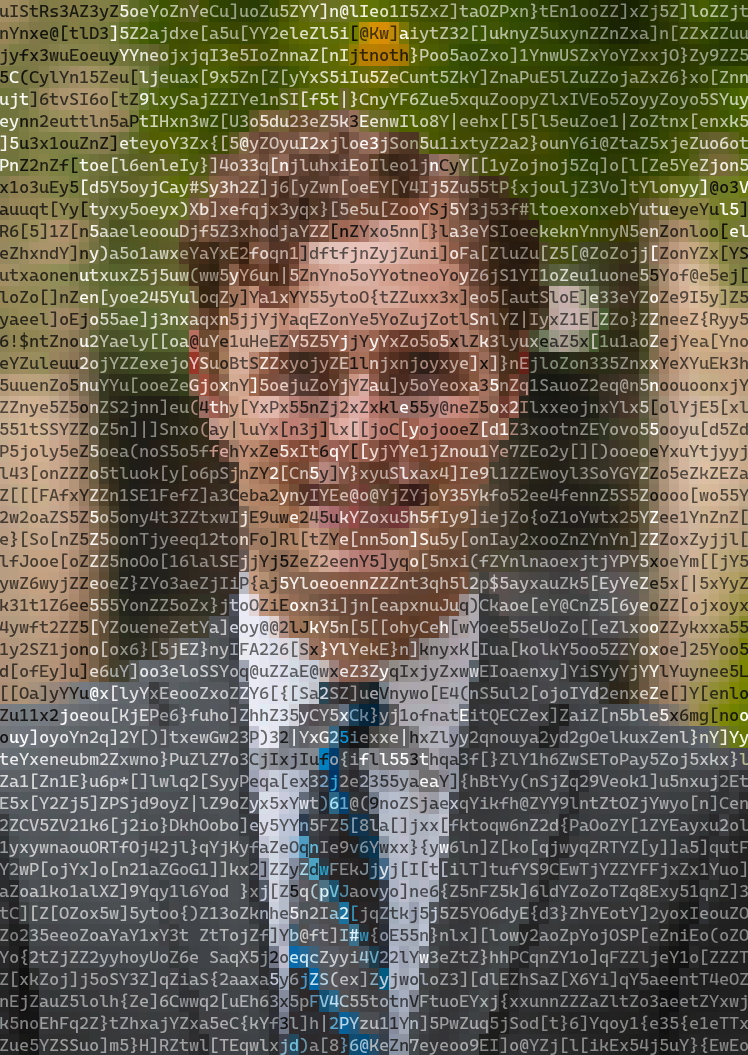
ansimage is a versatile Rust library and command-line tool for converting images into colorful terminal ANSI art.
It offers a high degree of control over character sets, color palettes, and output size, using perceptually uniform color calculations to generate high-quality results.


Features
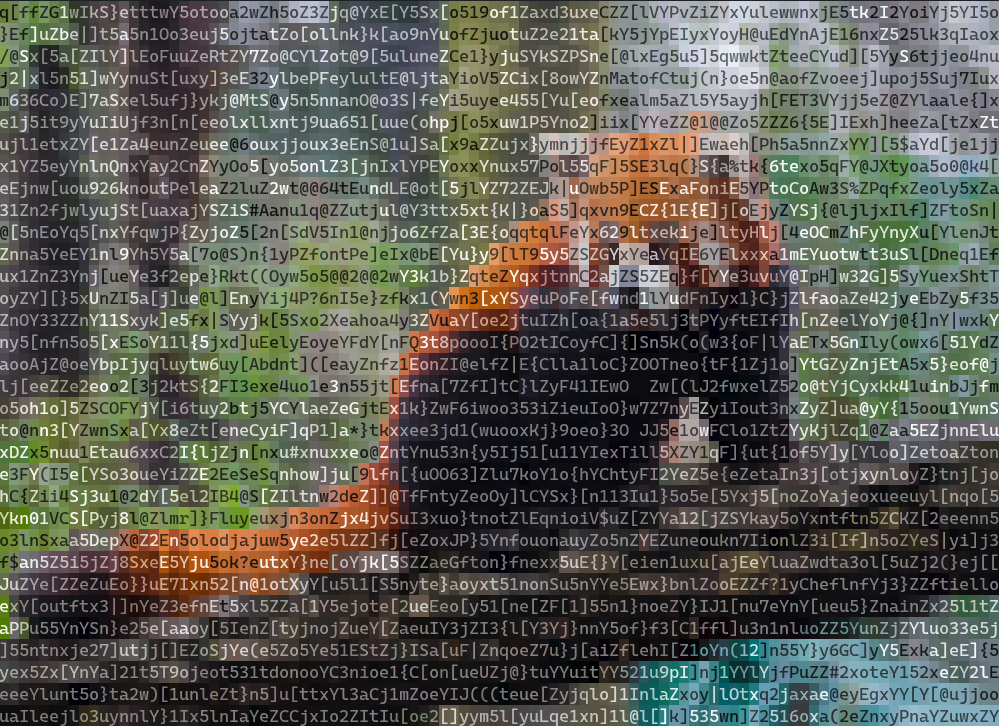
- Multiple Character Modes: Render images using standard ASCII brightness ramps, high-fidelity Unicode block characters, or your own custom character sets.
- Advanced Color Handling: Supports 24-bit "truecolor" output as well as color quantization for terminals with limited palettes (e.g., 256 or 16 colors).
- High-Quality Processing: Uses the L*u*v* color space for perceptually accurate color comparisons and
imagequantfor high-quality dithering and palette mapping. - Performance: Image processing is parallelized using Rayon to take advantage of multiple CPU cores.
- Flexible Sizing: Easily fit the output to specific dimensions while preserving aspect ratio, or scale to an exact character width and height.
- Simple CLI and Library API: Use it as a quick command-line tool or integrate it directly into your Rust projects.
Installation
As a Command-Line Tool
Ensure you have the Rust toolchain installed. You can then install ansimage directly from Crates.io:
cargo install --locked ansimage
As a Library
Add ansimage as a dependency in your Cargo.toml file:
[dependencies]
ansimage = "0.1.0" # Replace with the latest version
Usage
Command-Line Interface
The CLI provides a straightforward way to convert an image. The only required argument is the input file path.
Basic Conversion
This command will process photo.jpg and print the resulting ANSI art to your terminal.
ansimage photo.jpg
Saving to a File
Use the --output or -o flag to save the result to a text file. You can combine this with --quiet to suppress terminal output.
ansimage photo.jpg --output art.txt --quiet
For a full list of commands, run:
ansimage --help
Library API
Integrating ansimage into your own project is simple. The main entry point is the convert function, which takes an image path and a Settings struct.
Here's a basic example:
use ansimage::{convert, error::Result, Settings};
use std::path::Path;

fn main() -> Result<()> {
    // Use default settings for a quick conversion.
    let settings = Settings::default();

    // The path to the image you want to convert.
    let image_path = Path::new("path/to/my_image.png");

    // Call the convert function.
    let terminal_art = convert(image_path, &settings)?;

    // Print the result!
    println!("{}", terminal_art);

    Ok(())
}
Configuration
You can customize the output by modifying the Settings struct.
size: Control the outputwidth,height, andSizeMode(Fitvs.Exact).characters: Choose aCharacterMode(Ascii,Unicode,Custom),ColorMode(OneColorvs.TwoColor), and adjust the font'saspect_ratio.colors: Enable or disableis_truecolormode. Whenfalse, you must provide apaletteofimage::Rgb<u8>colors.advanced: Configure theresize_filterand enable/disabledithering.
Example: Custom Unicode Settings
use ansimage::{
    palettes, settings::{CharacterMode, UnicodeCharSet},
    Characters, Colors, Settings, Size,
};

let custom_settings = Settings {
    size: Size {
        width: 100,
        ..Default::default()
    },
    characters: Characters {
        // Use high-resolution quarter-block Unicode characters.
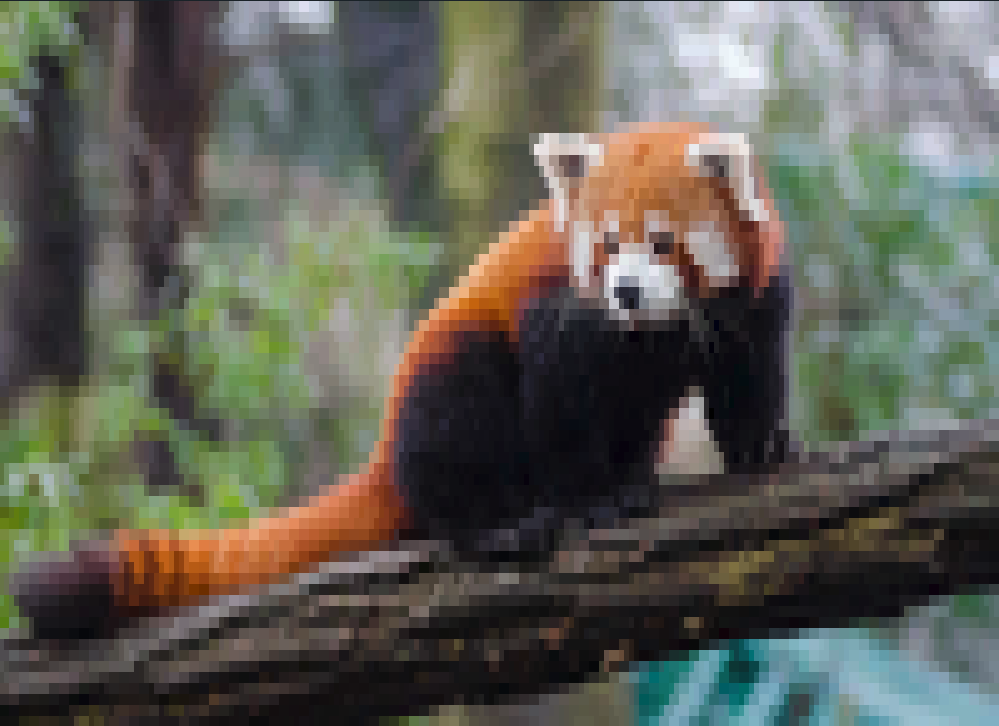
        mode: CharacterMode::Unicode(UnicodeCharSet::Quarter),
        ..Default::default()
    },
    colors: Colors {
        // Disable truecolor and use a predefined 16-color palette.
        is_truecolor: false,
        palette: palettes::COLOR_PALETTE_SWEETIE16.to_vec(),
    },
    ..Default::default()
};

// Use this custom_settings object with the `convert` function.
Examples
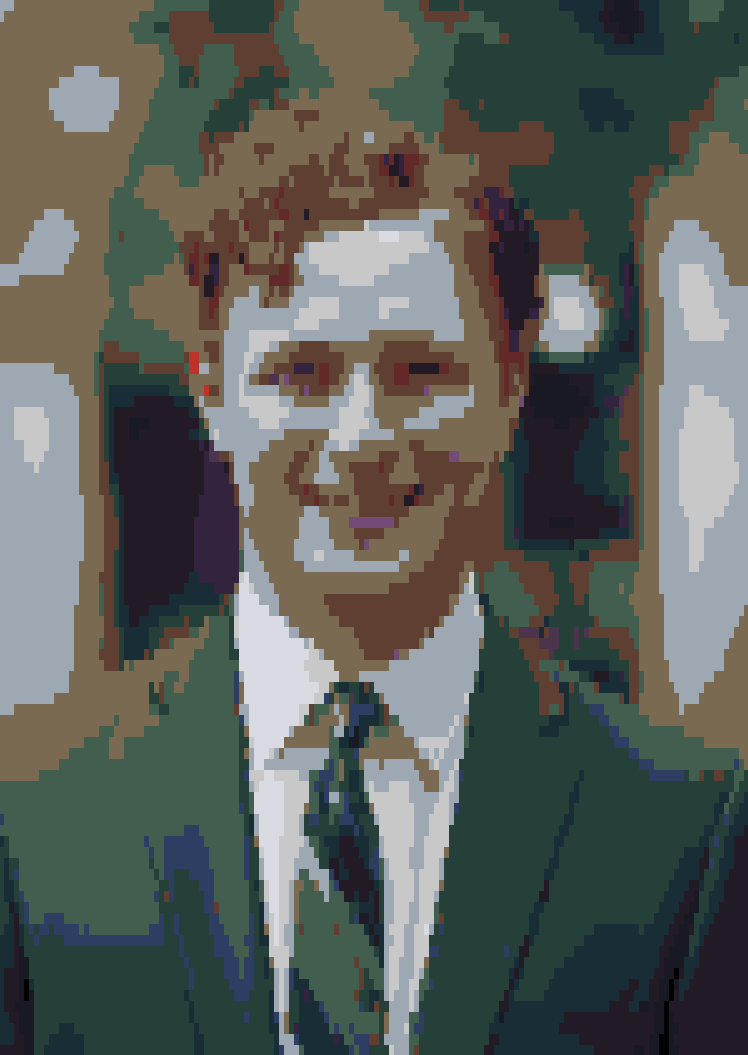
me
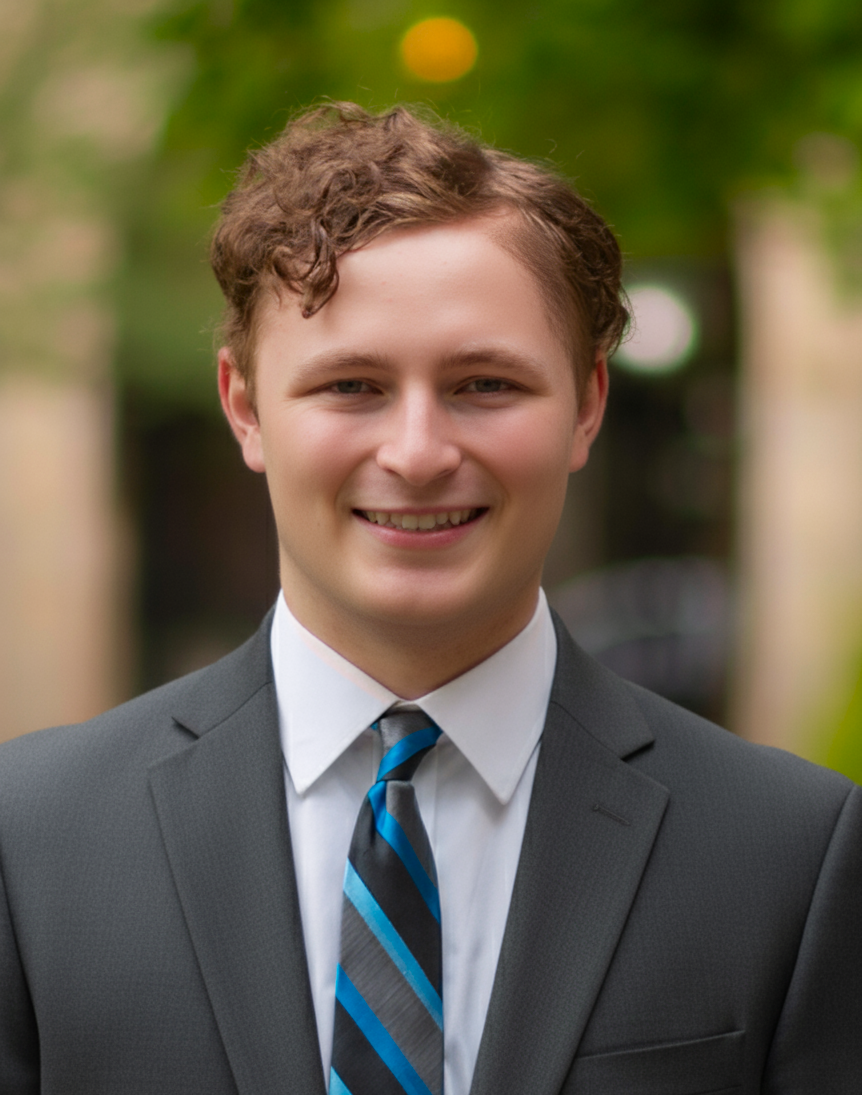
me ascii
me fullblock
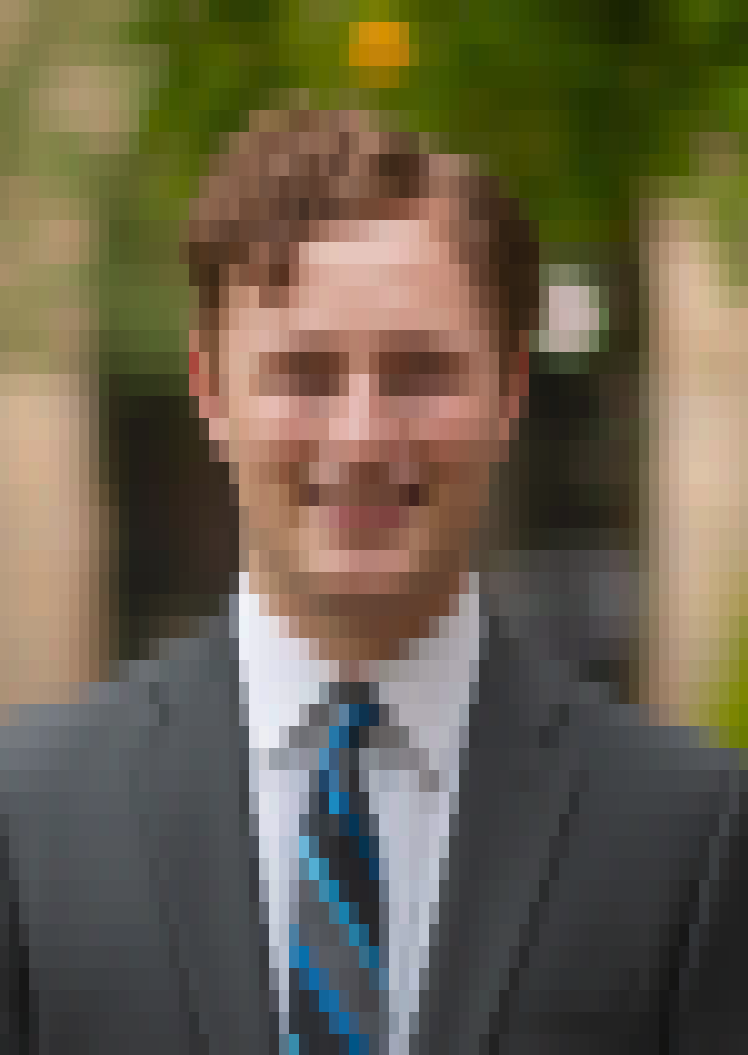
me quarterblock

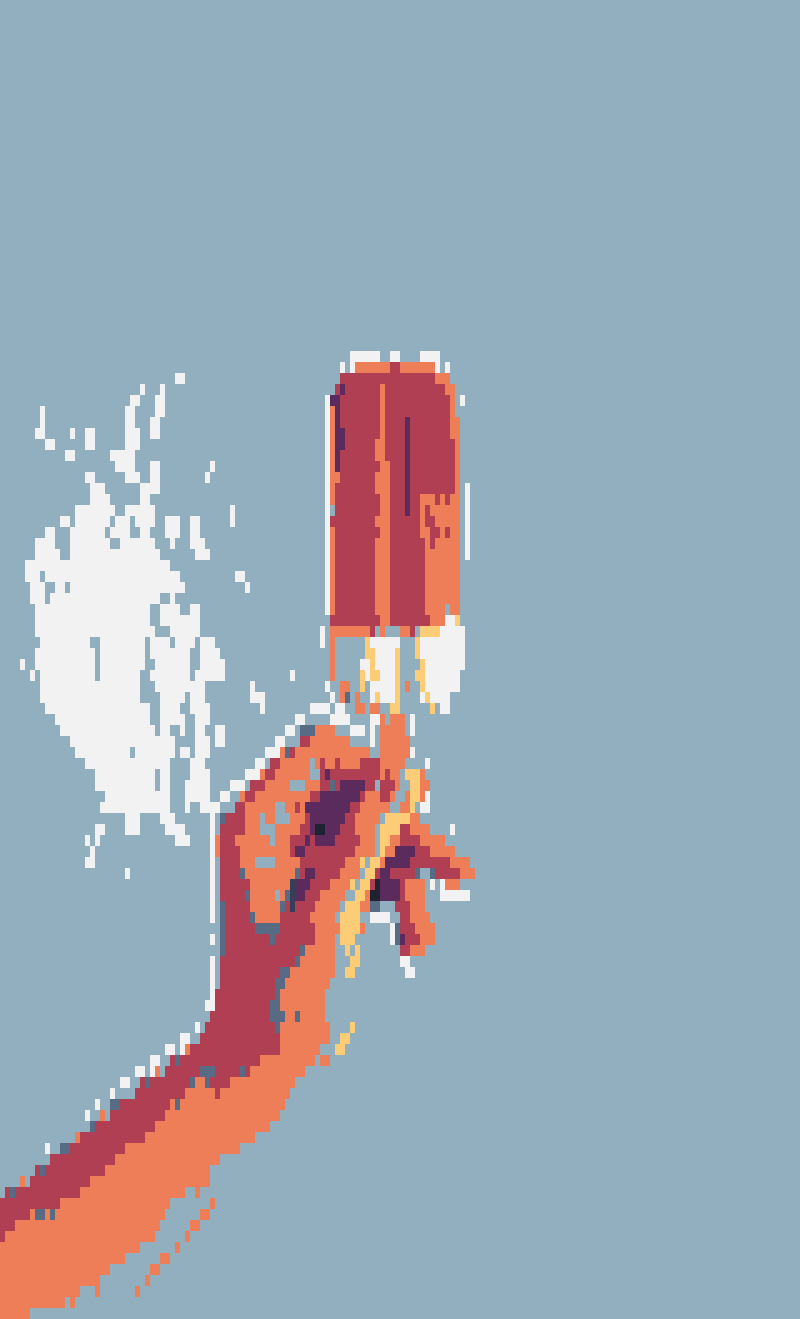
me quarterblock sweetie16
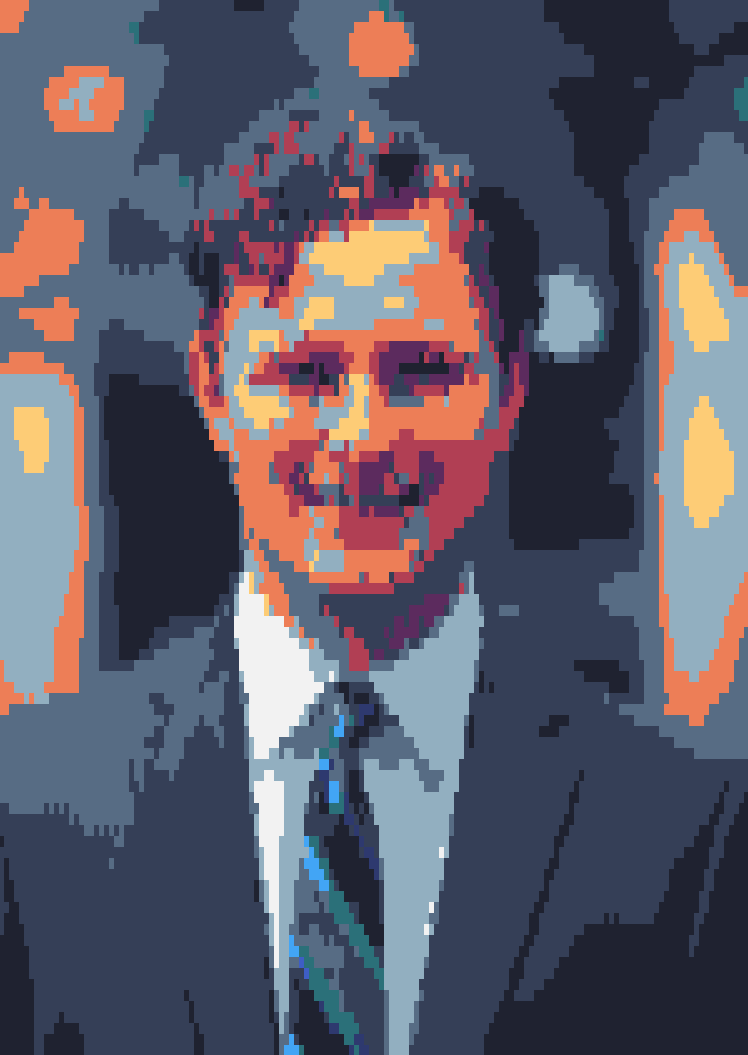
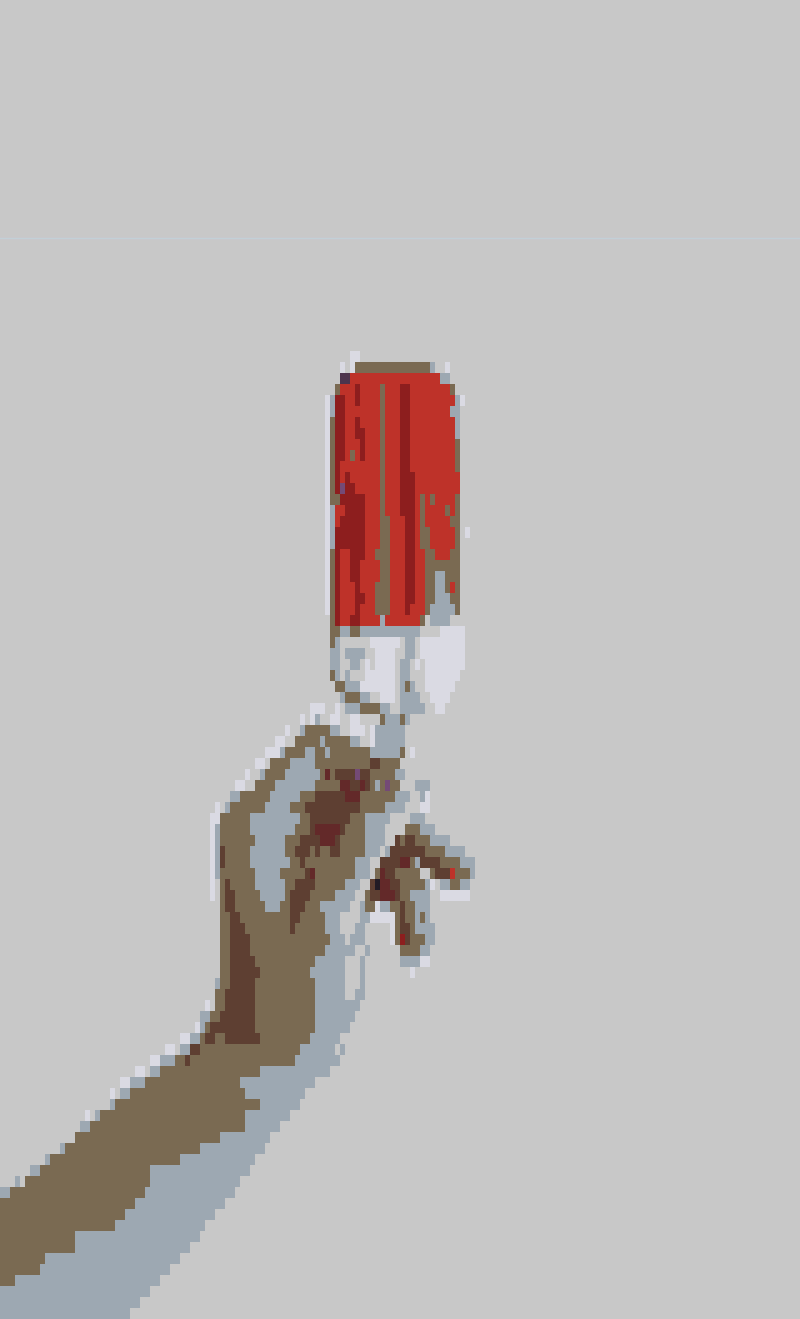
me quarterblock horrorbluedark
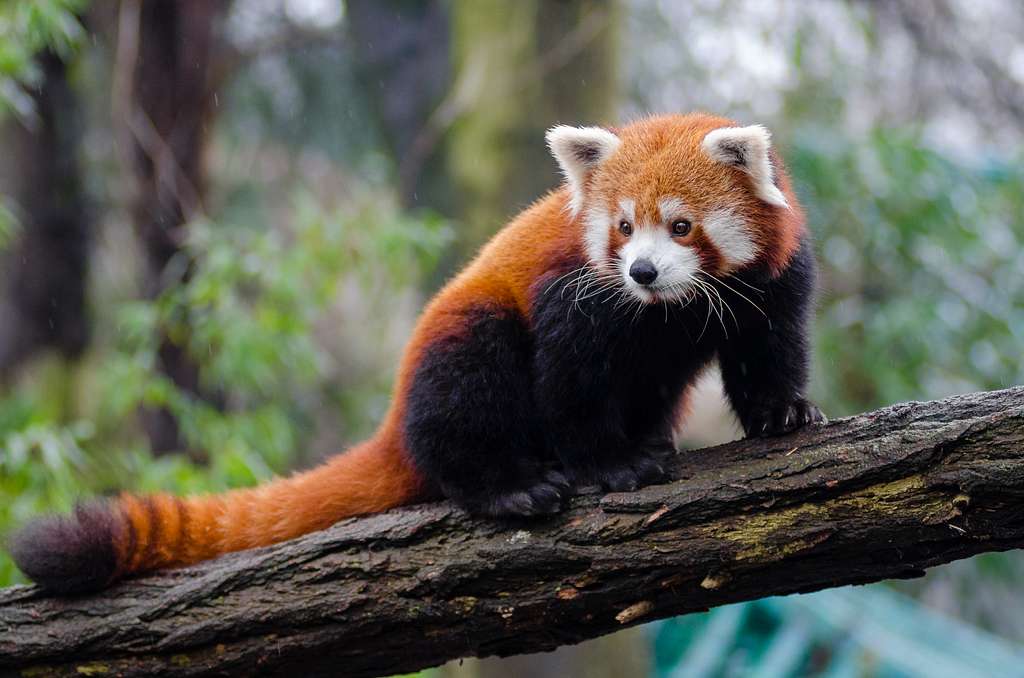
redpanda
redpanda ascii
redpanda quarterblock
redpanda quarterblock sweetie16
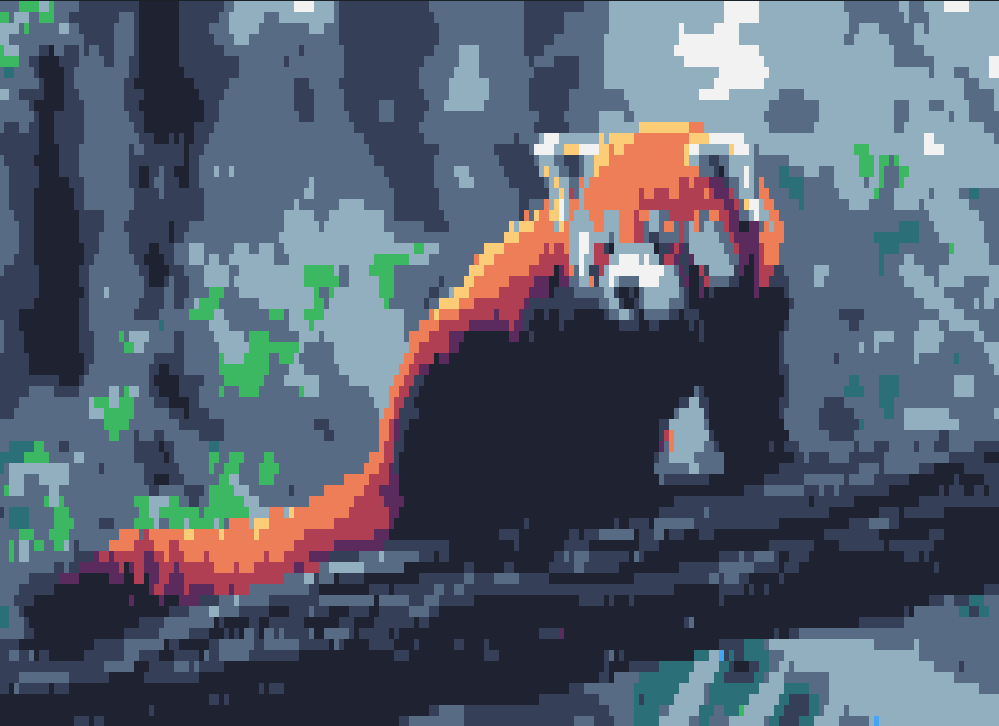
redpanda quarterblock horrorbluedark
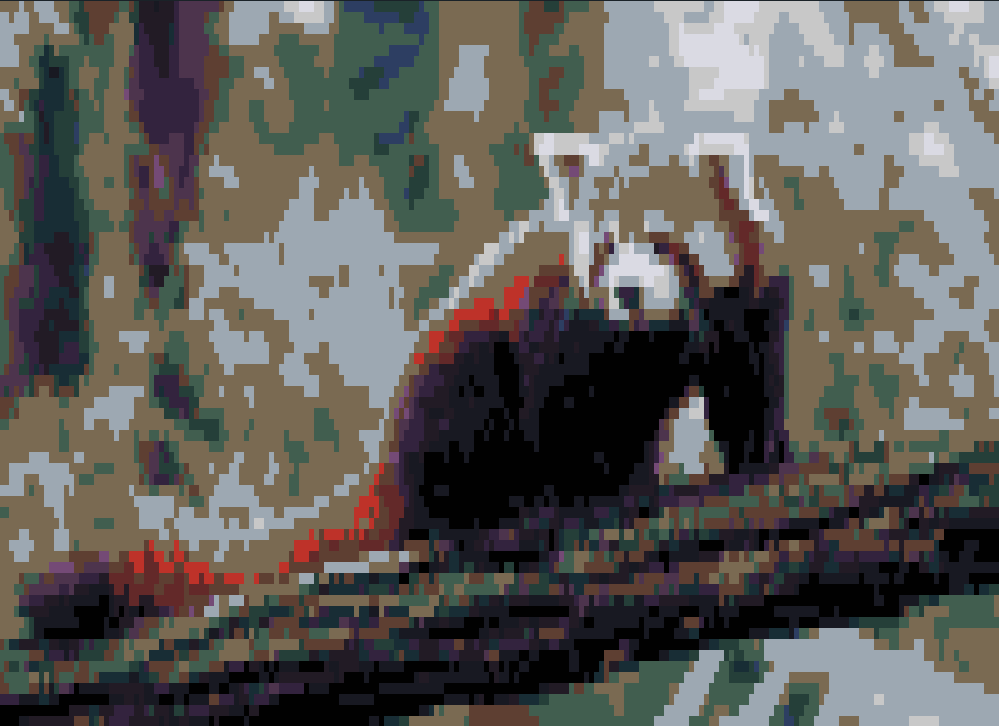
popsicle
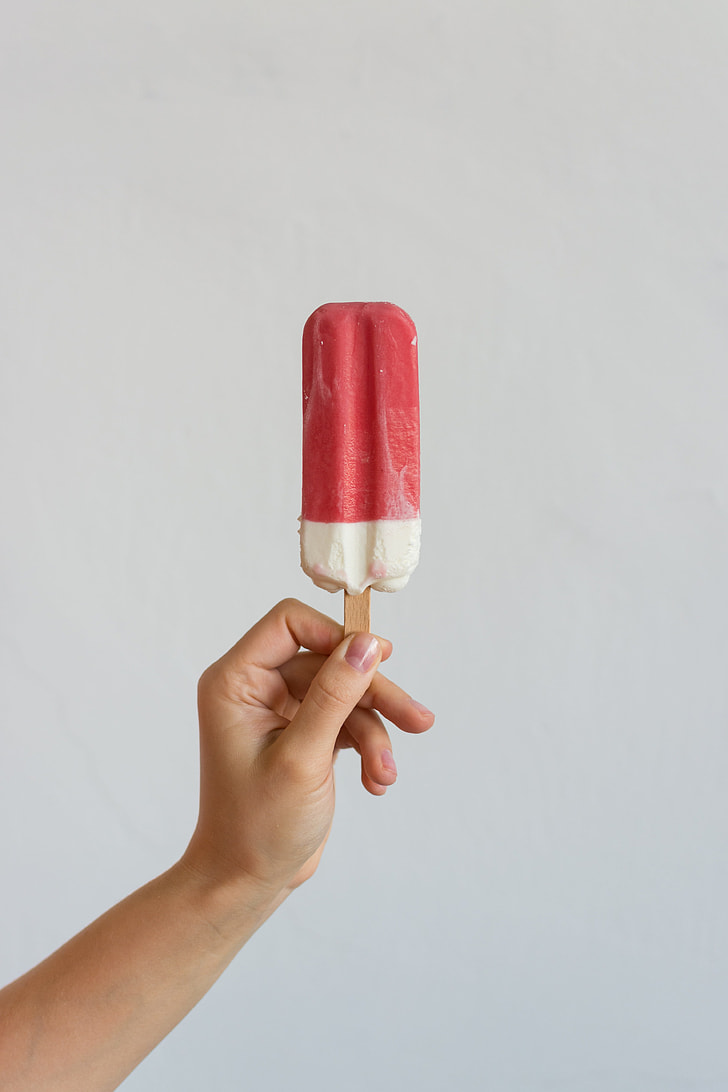
popsicle ascii
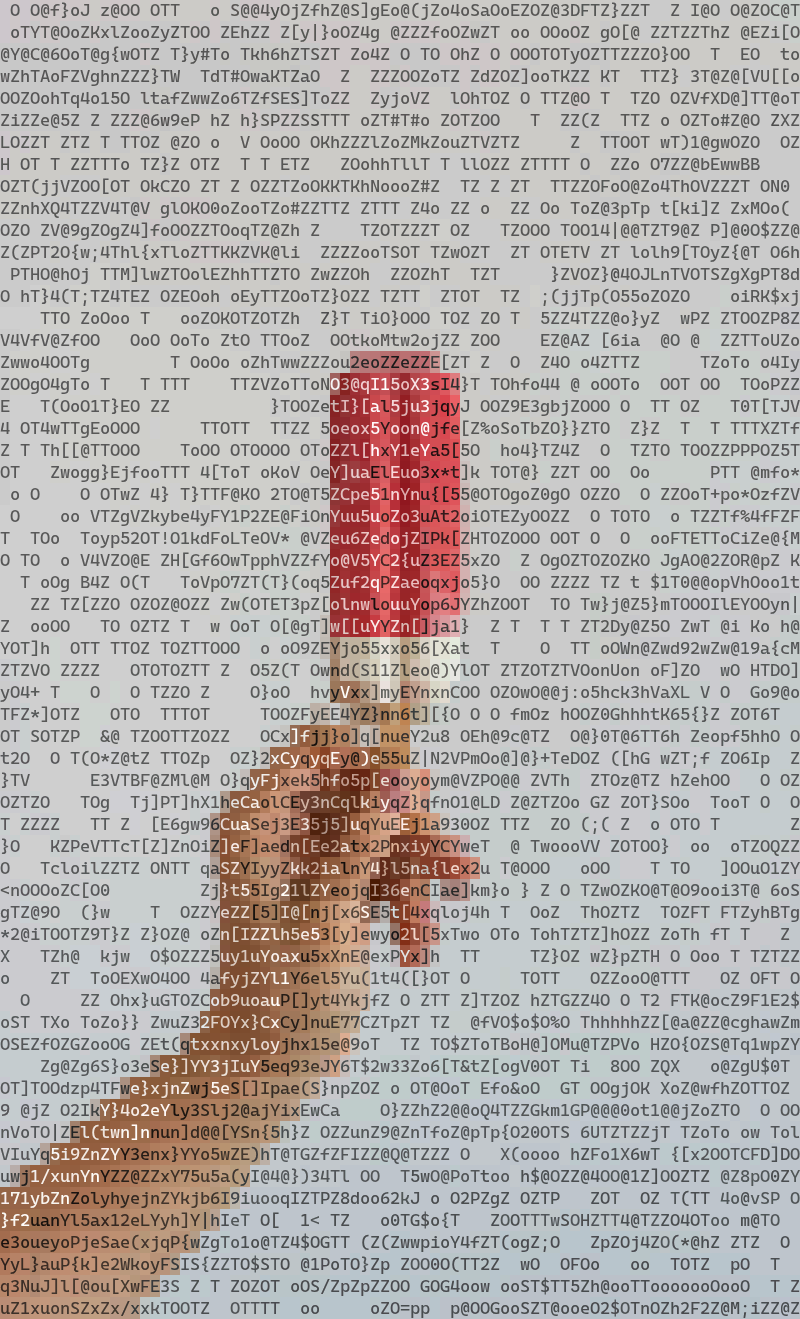
popsicle quarterblock
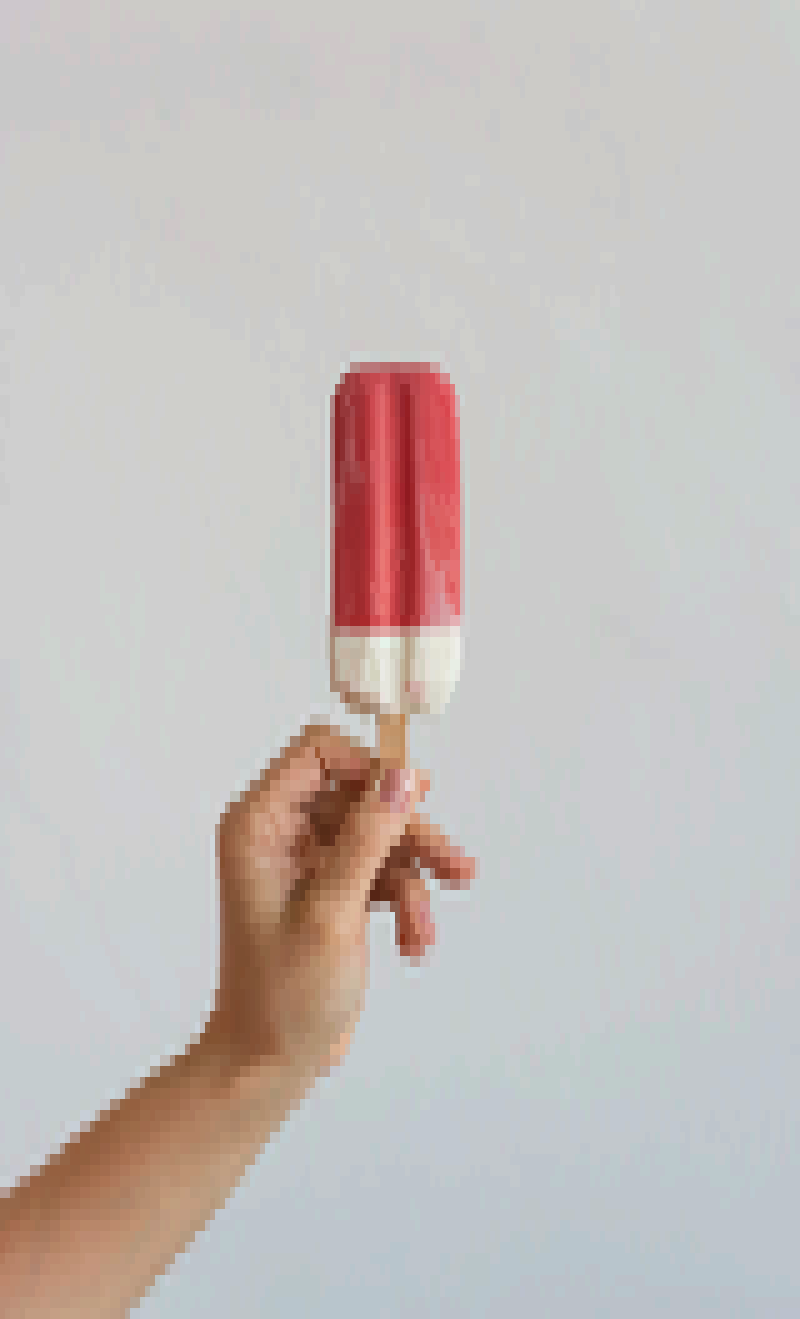
popsicle quarterblock sweetie16
popsicle quarterblock horrorbluedark
castle
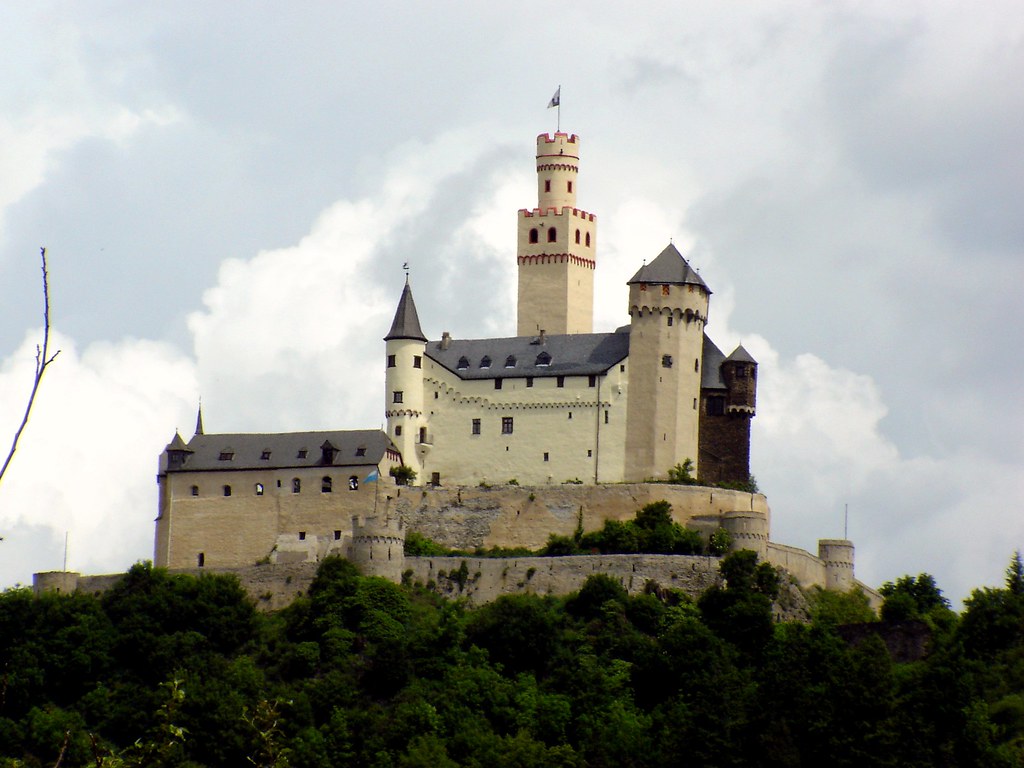
castle ascii
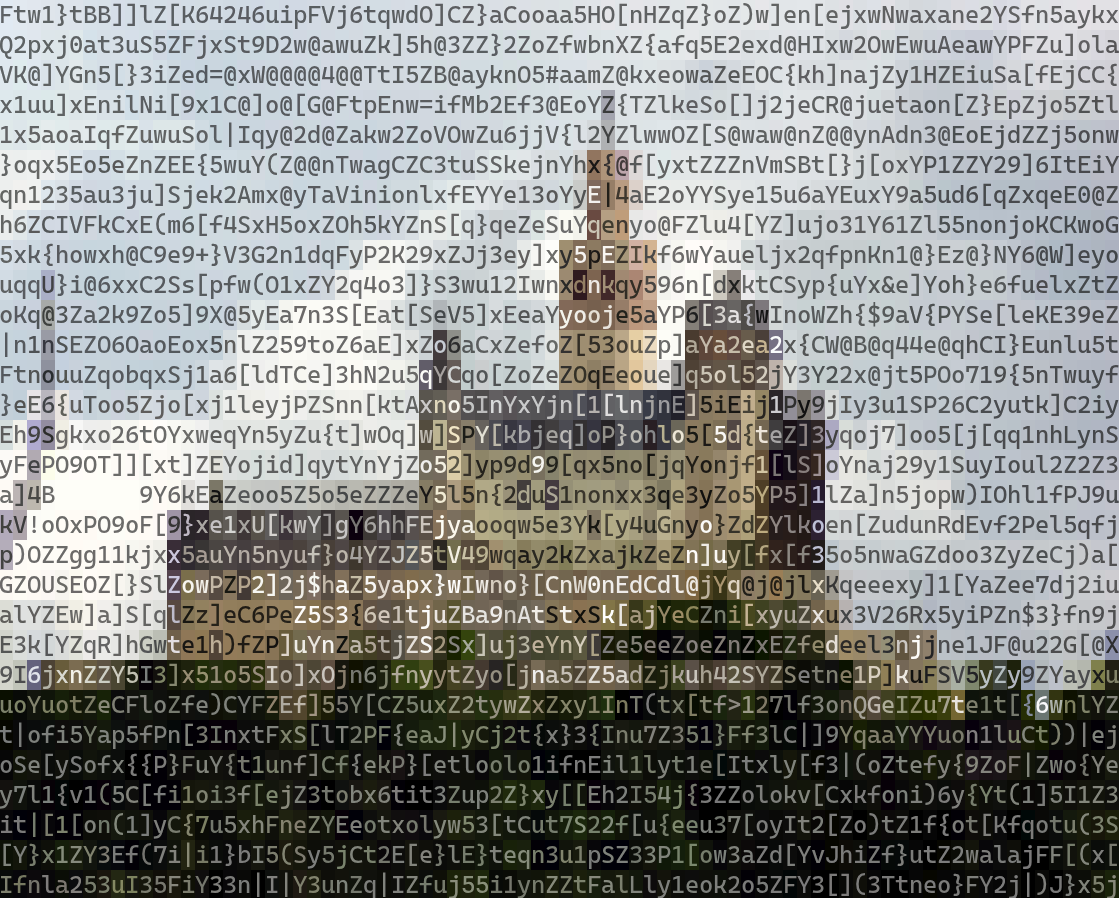
castle quarterblock
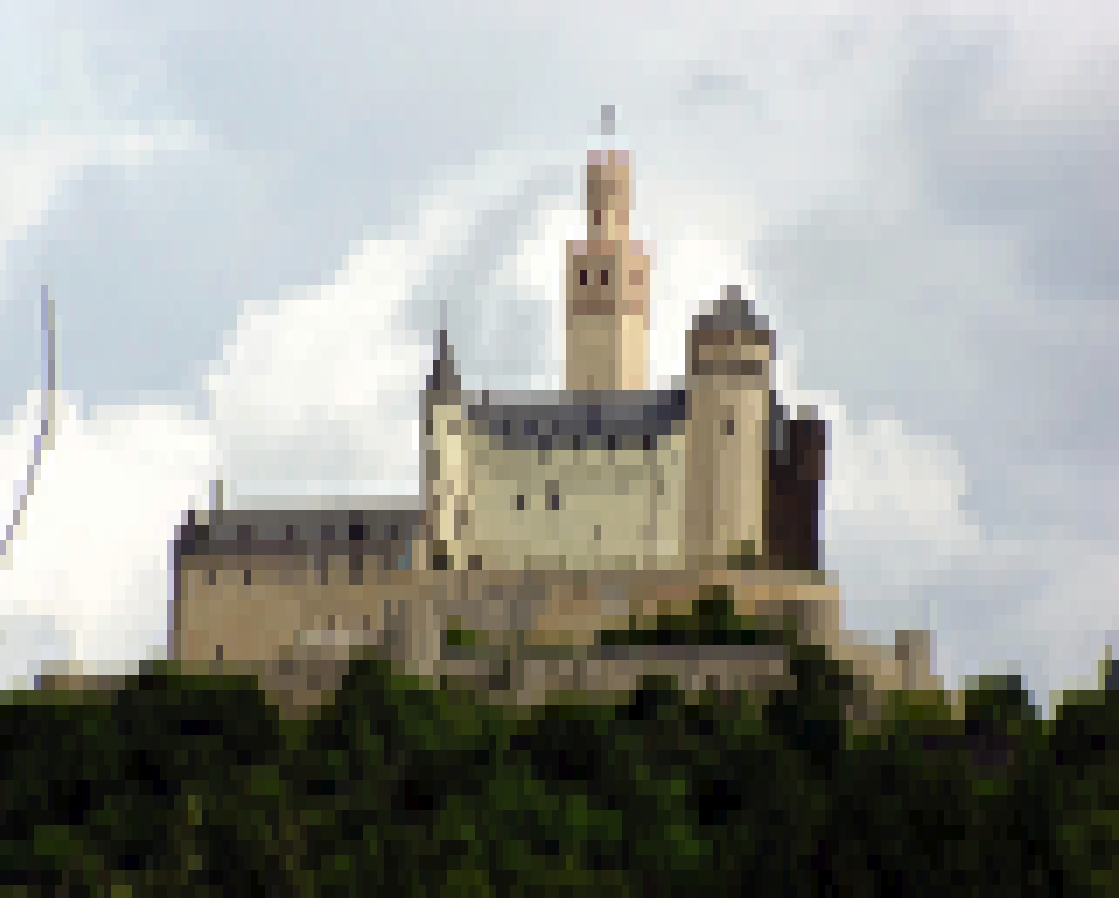
castle quarterblock sweetie16
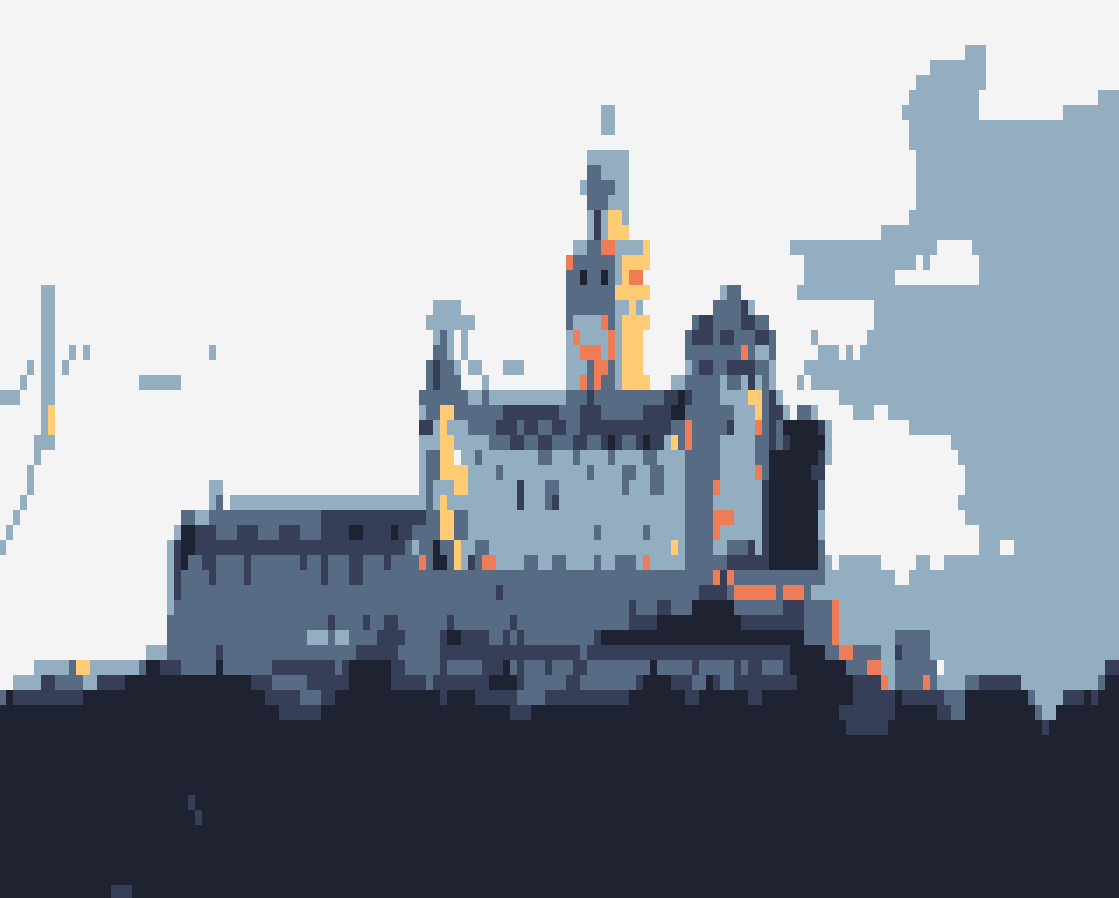
castle quarterblock horrorbluedark
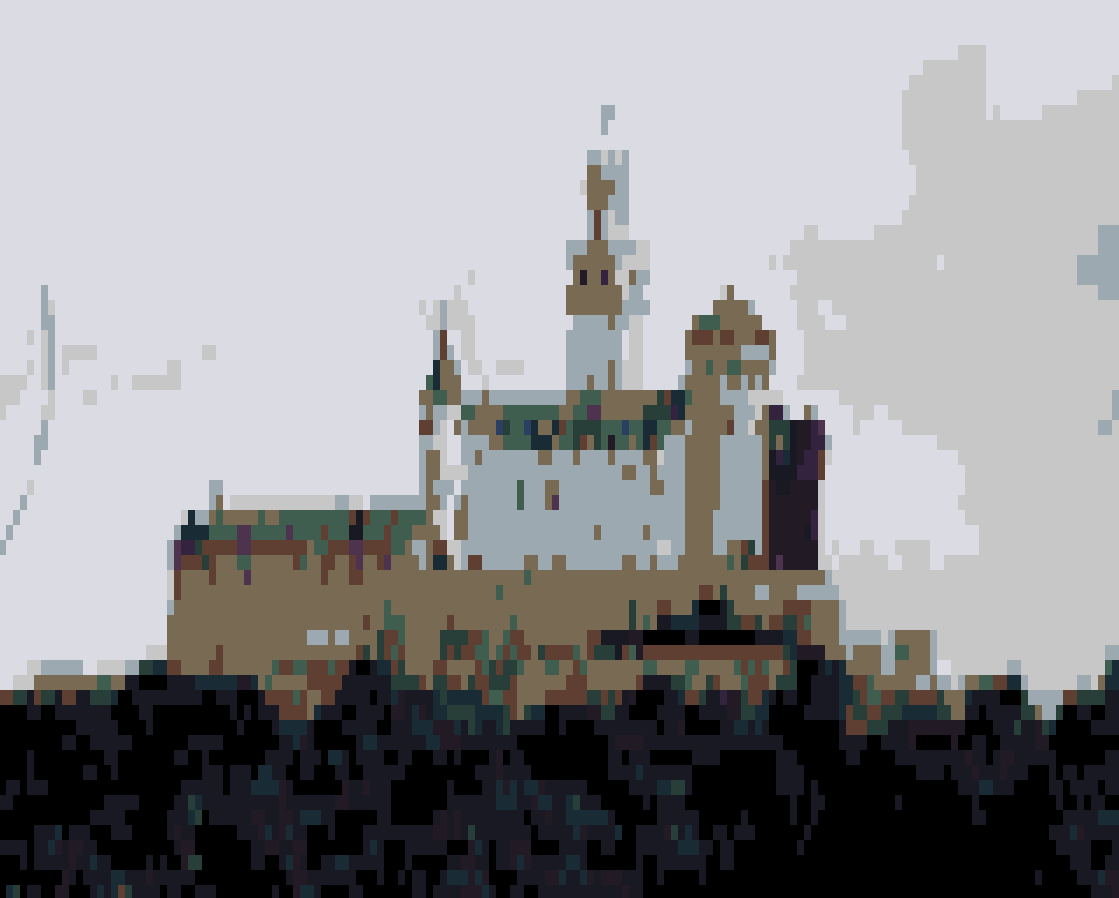
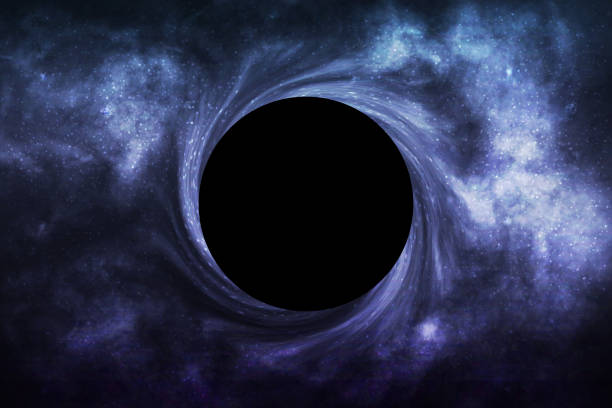
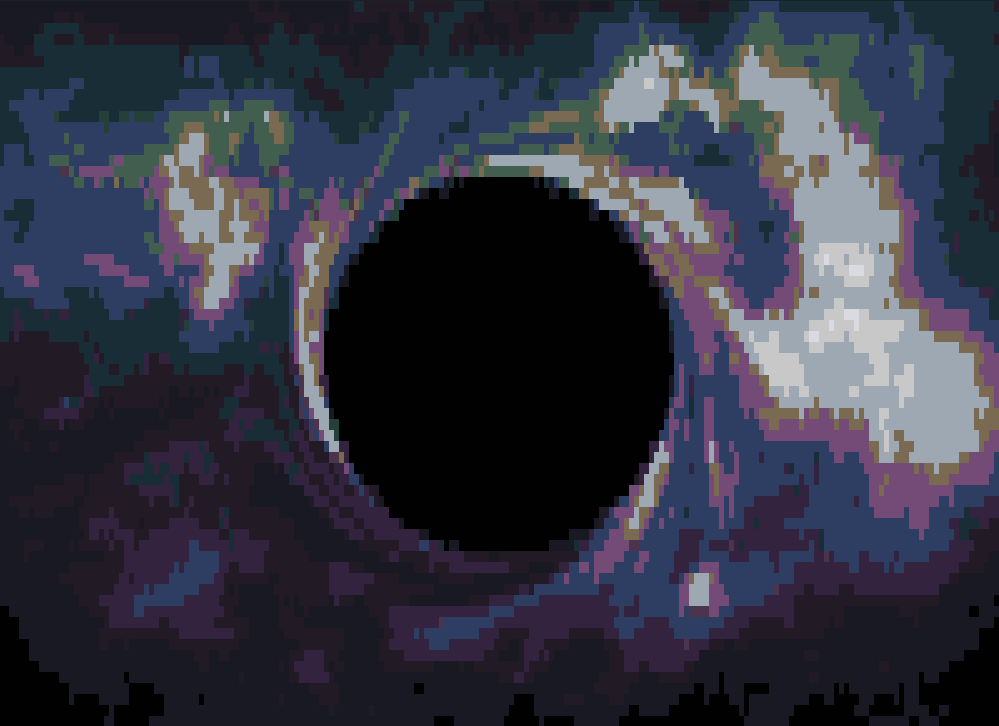
blackhole
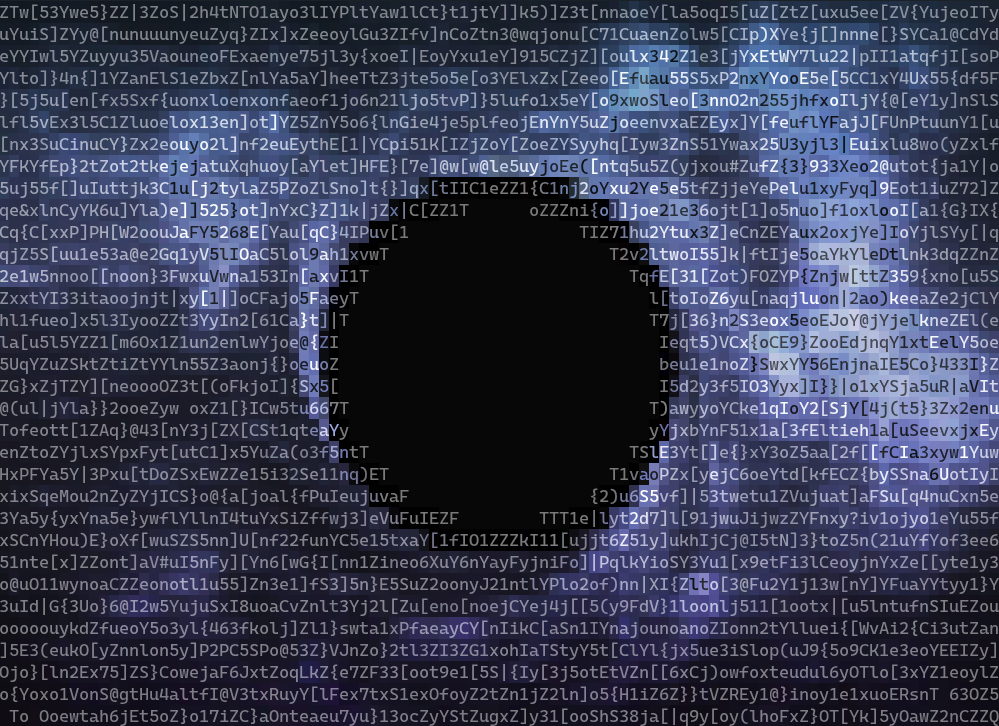
blackhole ascii
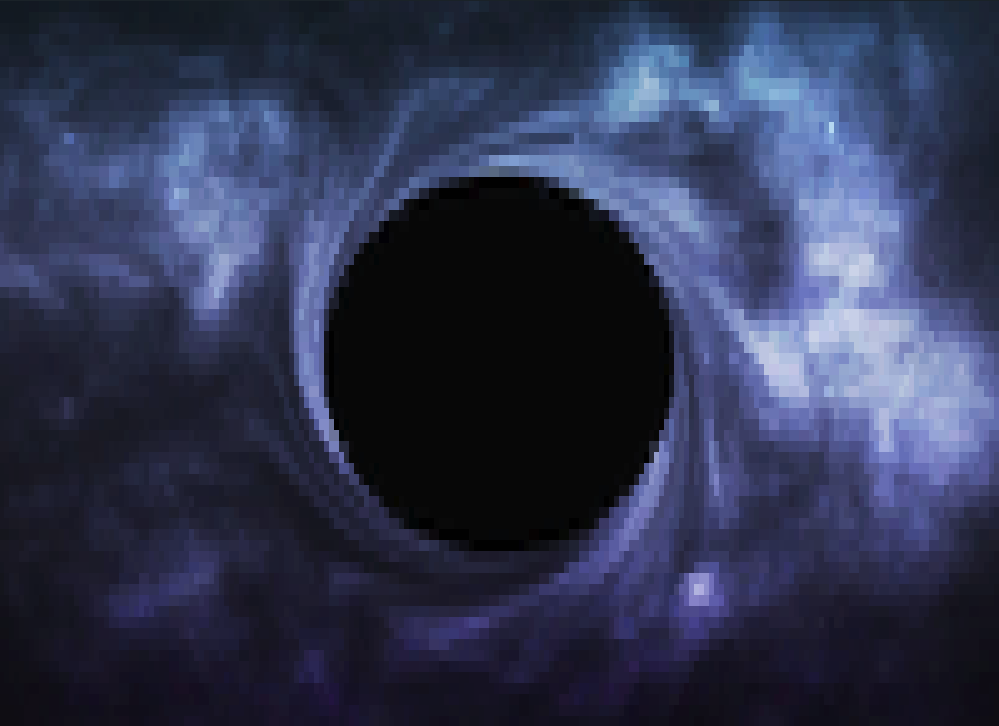
blackhole quarterblock
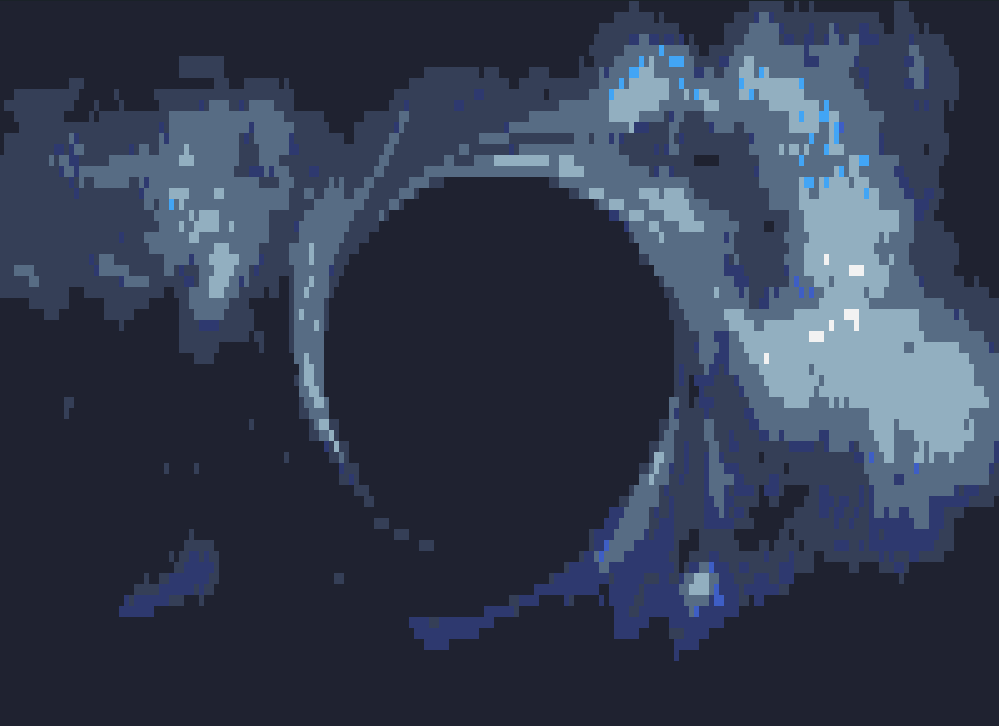
blackhole quarterblock sweetie16
blackhole quarterblock horrorbluedark
Todo
- Option for color text on constant background (opposite of current)
- Allow basic image manipulation in bin, e.g. contrast, saturation, brightness
- Manually override fg text
License
This project is licensed under the MIT License. See the LICENSE file for details.