comchan
| Crates.io | comchan |
| lib.rs | comchan |
| version | 0.2.4 |
| created_at | 2025-06-29 09:03:45.880633+00 |
| updated_at | 2025-08-10 16:05:21.566563+00 |
| description | A Blazingly Fast and Minimal Serial Monitor for Embedded Applications |
| homepage | https://github.com/Vaishnav-Sabari-Girish/ComChan |
| repository | https://github.com/Vaishnav-Sabari-Girish/ComChan |
| max_upload_size | |
| id | 1730574 |
| size | 8,960,079 |
 Vaishnav-sabari-girish (Vaishnav-Sabari-Girish)
documentation
README

ComChan (Communication Channel)
ComChan is a Blazingly Fast Serial monitor for Embedded Systems and Serial Communication.
Latest Version: 0.2.3
Installation
From crates.io
[!NOTE]
cargo installNOW AVAILABLE
cargo install comchan

#Install the binary directly
cargo binstall comchan
After installing, check if it has been installed with
comchan --version
From AUR
Thanks to orhun, ComChan now has an AUR package
# Using yay

yay -S comchan

# Using paru

paru -S comchan
Using Homebrew
ComChan can also be installed by using Homebrew taps
brew install Vaishnav-Sabari-Girish/taps/comchan
From source
# Clone from GitHub
git clone git@github.com:Vaishnav-Sabari-Girish/ComChan.git

# Clone from Codeberg
git clone ssh://git@codeberg.org/Vaishnav-Sabari-Girish/ComChan.git
cd ComChan

cargo build --release

cargo run
Documentation Link
Documentation Link : https://vaishnav.world/ComChan
Common Commands
Basic Serial Monitor
comchan -p <port> -r <baud_rate>

# OR

comchan --port <port> --baud <baud_rate>
Verbose Mode
comchan -p <port> -r <baud_rate> -v

# OR

comchan --port <port> --baud <baud_rate> --verbose
Log Mode
comchan -p <port> -r <baud_rate> -l <log_file_name>

# OR

comchan --port <port> --baud <baud_rate> --log <log_file_name>
For an example log file , get it here
Serial Plotter
comchan --port <port> --baud <baud_rate> --plot

# OR

comchan -p <port> -r <baud_rate> --plot
Automatically detect serial ports
comchan --auto    ##Defaults baud rate to 9600

#OR

comchan --auto --baud <baud_rate>  # For non-default baud rates like 115200

# OR

comchan --auto -r <baud_rate>
Use a Configuration file
As of version 0.1.9, you can now create your own configuration file to use ComChan, which means that you won't have to type all the flags.
# Generate default configuration file

comchan --generate-config   # Generates the default config file at ~/.config/comchan/comchan.toml
Here is an example configuration file
# ComChan Configuration File
#
# This file contains default settings for comchan serial monitor.
# Command line arguments will override these settings.
#
# To use auto-detection, set port = "auto"
# Available parity options: "none", "odd", "even"
# Available flow control options: "none", "software", "hardware"

port = "auto"
baud = 9600
data_bits = 8
stop_bits = 1
parity = "none"
flow_control = "none"
timeout_ms = 500
reset_delay_ms = 1000
verbose = false
plot = false
plot_points = 100
[!NOTE] Note that the default baud rate is
9600, you can change it later on in the config file
The above default config file values can be overridden by using the flags (--auto, --port or -p, --baud or -r, --plot).
Features
- Read incoming Serial data from Serial ports
- Write to Serial port i.e Send data to Serial device.
- Basic logging.
- Auto detect Serial Ports
- Use a
.tomlfile for config instead of flags - Write serial data to a file for later use (can be .txt , .csv and more)
- Terminal based Serial Plotter (to be implemented with the
--plotcommand) - Plot multiple sensor values in the Serial Plotter with legends
Legends
- Implemented Features
- Yet to me implemented
Examples
"Hello World" Program

User Input

Serial Plotter

Auto Serial Port Detector

Using the Configuration file
Serial Monitor (plot = false)

Serial Plotter (plot = true)

Serial Plotter Multiple sensor values

ComChan in Windows
As of Version 0.2.2, ComChan can be used in Windows with no drawbacks
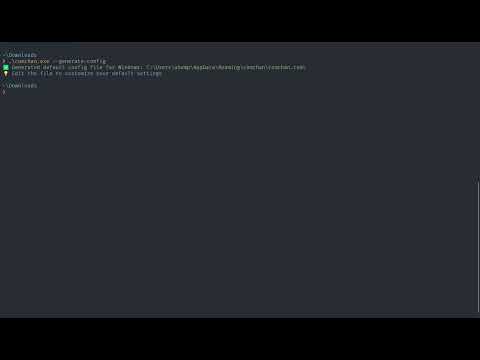
To use ComChan in Windows, you can download the .exe file from the releases and use it as follows.
Let's say you have downloaded the .exe file to Downloads/, you have to first open cmd or Powershell and cd to Downloads/ and then
comchan.exe --help
Feedback Form
The Feedback form was created using Bashforms (Forms in the terminal itself).
To give you feedback, please type this on your terminal
ssh -t bashform.me f comchan
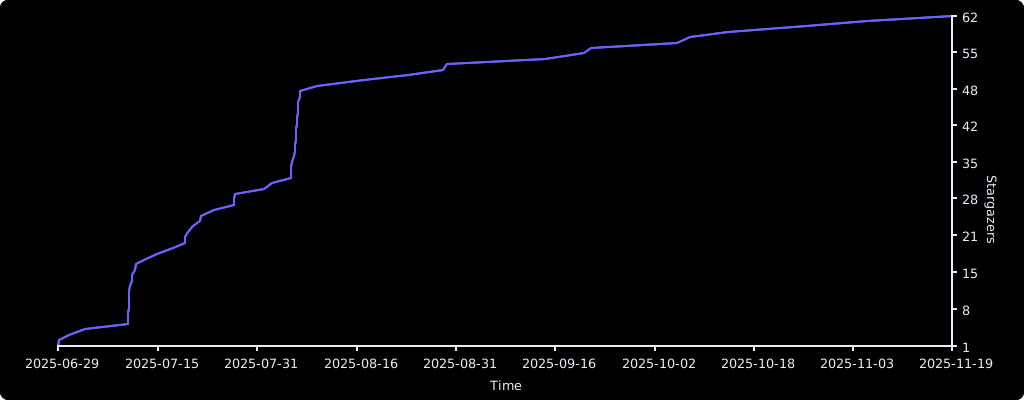
Stargazers over time