hgrep
| Crates.io | hgrep |
| lib.rs | hgrep |
| version | 0.3.9 |
| created_at | 2021-10-16 14:01:38.333728+00 |
| updated_at | 2025-10-30 12:53:38.228803+00 |
| description | hgrep is a grep tool with human-friendly search output. This is similar to `-C` option of `grep` command, but its output is enhanced with syntax highlighting focusing on human readable outputs. |
| homepage | https://github.com/rhysd/hgrep#readme |
| repository | https://github.com/rhysd/hgrep |
| max_upload_size | |
| id | 465848 |
| size | 1,333,731 |
 Linda_pp (rhysd)
documentation
README
hgrep: Human-friendly GREP



hgrep is a grep tool to search files with a given pattern and print the matched code snippets with human-friendly syntax highlighting. This tool brings search results like the code search on GitHub to your local machine. In short, it's something like searching files with ripgrep and showing results with bat.
This is similar to -C option of grep command. hgrep is useful to survey the matches with contexts around them. When some
matches are near enough, hgrep prints the lines within one code snippet. Unlike grep -C, hgrep adopts some heuristics around
blank lines to determine an efficient number of context lines.

Example:
# Use built-in subset of ripgrep (optional)
hgrep pattern ./dir

# Read results of grep command via stdin
grep -nH pattern -R ./dir | hgrep
rg -nH pattern ./dir | hgrep
hgrep provides two printers to print match results for your use case. Please see 'bat printer v.s. syntect printer'
section for the comparison.
syntectprinter (default): Our own implementation of printer using syntect library. Performance, output layout, and color themes are more optimizedbatprinter: Printer built on top of bat's pretty printer implementation, which is battle-tested and provides some unique features
Please see the usage section for more details.
Installation
Binary releases
Visit the releases page and download the zip file for your platform. Unarchive the file and put the executable file
in some $PATH directory. Currently, the following targets are supported. If you want a binary for some other platform, feel free
to make an issue to request it.
- Linux (x86_64-gnu, x86_64-musl, aarch64-gnu)
- macOS (x86_64, aarch64)
- Windows (x86_64-msvc, aarch64-msvc)
Via Homebrew
By adding hgrep repository as Homebrew tap, hgrep command can be installed and managed via Homebrew. The formula
supports x86_64/aarch64 macOS and x86_64 Linux.
brew tap "rhysd/hgrep" "https://github.com/rhysd/hgrep"
brew install hgrep
Note: If you installed Homebrew to a non-default location (e.g. ~/homebrew), you might see some errors. In the case, please try
to install hgrep via cargo instead. See #6 for more details.
Via MacPorts
On macOS, you can install hgrep with the following commands through MacPorts:
sudo port selfupdate
sudo port install hgrep
For NetBSD
To install pre-built binaries using the package manager, simply run:
pkgin install hgrep
Or, if you prefer to build from source,
cd /usr/pkgsrc/textproc/hgrep
make install
Via APT package manager on Debian or Ubuntu
Visit the releases page and download .deb package file. It can be installed via dpkg command:
sudo dpkg -i hgrep_v0.3.6-1_amd64.deb
The manual (for man command) and Bash completion is automatically installed. If you're using some other shell, setup the shell
completion by yourself. See 'Generate completion scripts' section for more details.
Via cargo package manager
cargo install hgrep
Since cargo builds hgrep command from sources, you can choose your favorite features and drop others by feature flags. For
example, if you always use hgrep with reading grep output from stdin and don't use bat printer, only enabling syntect-printer
dramatically reduces the number of dependencies, installation time, and binary size.
cargo install hgrep --no-default-features --features syntect-printer
Feature flags
All features are optional and enabled by default. At least bat-printer or syntect-printer needs to be enabled.
| Feature | Description |
|---|---|
ripgrep |
Built-in grep implementation built on top of ripgrep as a library. Performance is better than piping rg in some cases. |
syntect-printer |
Our own printer implementation built with syntect library. Performance and output layout are optimized for our use cases. |
bat-printer |
Printer implementation built on top of bat's pretty printer, which is battle-tested and provides some unique features. |
For the differences of bat-printer and syntect-printer, see 'bat printer v.s. syntect printer' section.
Usage
Built-in ripgrep
Optionally hgrep provides built-in grep implementation thanks to ripgrep as a library. It is a subset of rg command.
Built-in ripgrep is a recommended way to use hgrep because it is optimized for the use case.
When a pattern is given, hgrep command search files in given paths with it. When a directory is included in paths, hgrep
searches it recursively. When no path is given, hgrep searches the current directory.
hgrep [options...] pattern [paths...]
By default, hgrep shows at least 3 lines and at most 6 lines as context of a match. How many context lines is determined by some
heuristics around blank lines for space efficiency. Minimum context lines can be specified by -c and maximum context lines can
be specified by -C. If you don't want the heuristics, give the same value to the options like -c 6 -C 6.
# At least 10 context lines and at most 20 context lines
hgrep -c 10 -C 20 pattern paths...
Like ripgrep, the built-in grep filters files by default. It looks at ignore files such as .gitignore and ignores hidden files.
To disable the filters, --no-ignore and --hidden are available respectively. -u is a useful shortcut for them.
# Same as `hgrep --no-ignore pattern paths...`
hgrep -u pattern paths...

# Same as `hgrep --no-ignore --hidden pattern paths...`
hgrep -uu pattern paths...
Regarding to the performance compared to receiveing inputs from grep or rg via pipe, it's fast to handle so many matches in
the same process. In combination with syntect-printer feature, matched regions can be highlighted in a searched text color.
The built-in grep feature is enabled by default and can be omitted by feature flags.
Though almost all useful options are implemented, the built-in grep implementation is a subset of ripgrep. If you need full
functionalities, use rg command and eat its output by hgrep via stdin. Currently there are the following restrictions.
- Preprocessor is not supported (e.g. search zip files)
- Pattern file (
-for--fileofrg) is not supported - Sorting results (
--sortand--sortr) is not supported because it significantly slows down printing the search output - Memory map is not used until
--mmapflag is specified - Adding and removing file types are not supported. Only default file types are supported (see
--type-list) .ripgreprcconfig file is not supported- Searching binary files (
--binary) is not supported
Eating grep -nH output
When no pattern and paths are given in command line arguments, hgrep can take grep results via stdin. Since hgrep expects file
paths and line numbers in each line of the output, -nH is necessary at grep command.
grep -nH pattern -R paths... | hgrep [options...]
grep alternative tools like ripgrep, ag, pt, ... are also available because they can output results compatible with
grep -nH.
rg -nH pattern paths... | hgrep [options...]
bat printer v.s. syntect printer
hgrep provides two printers to print match results; bat printer and syntect printer. bat printer is a printer
implementation built on top of bat's pretty printer. And syntect printer is our own printer implementation built with
syntect library. --printer (or -p) flag can specify the printer to print results.
At first, there was bat printer only. And then syntect printer was implemented for better performance and optimized layout.
Pros of each printers
syntectprinter- Performance is much better. 2x to 4x faster (more match results get better performance).
- Output layout is optimized for our use cases. Matched regions are highlighted in a searched text color. A line number at a match is highlighted in a different color.
- Painting background color (
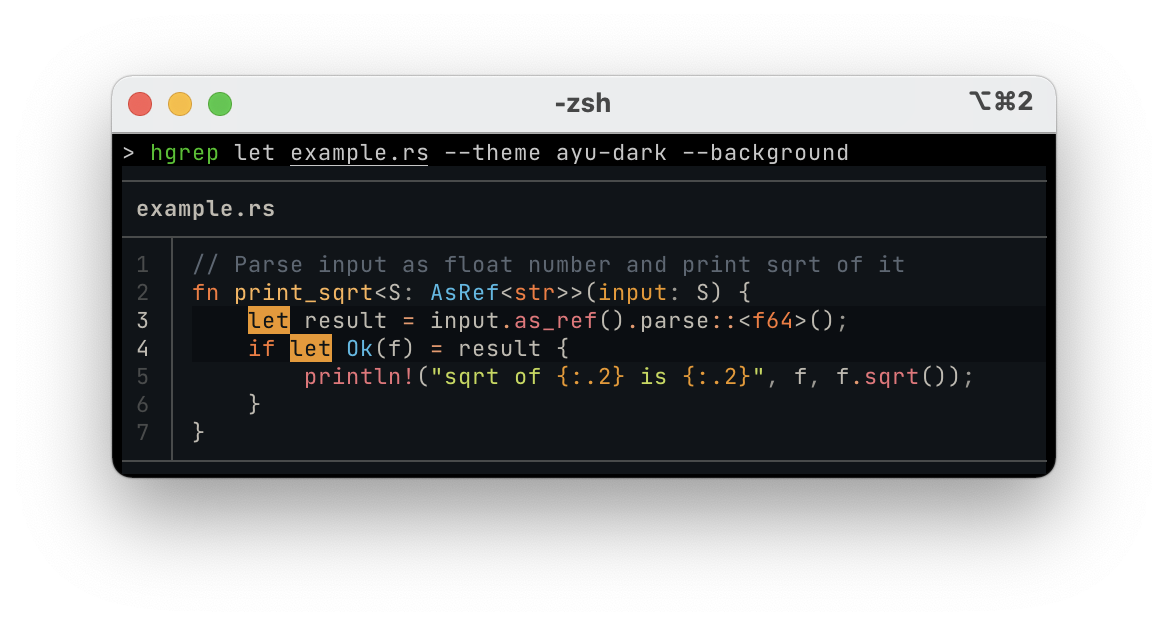
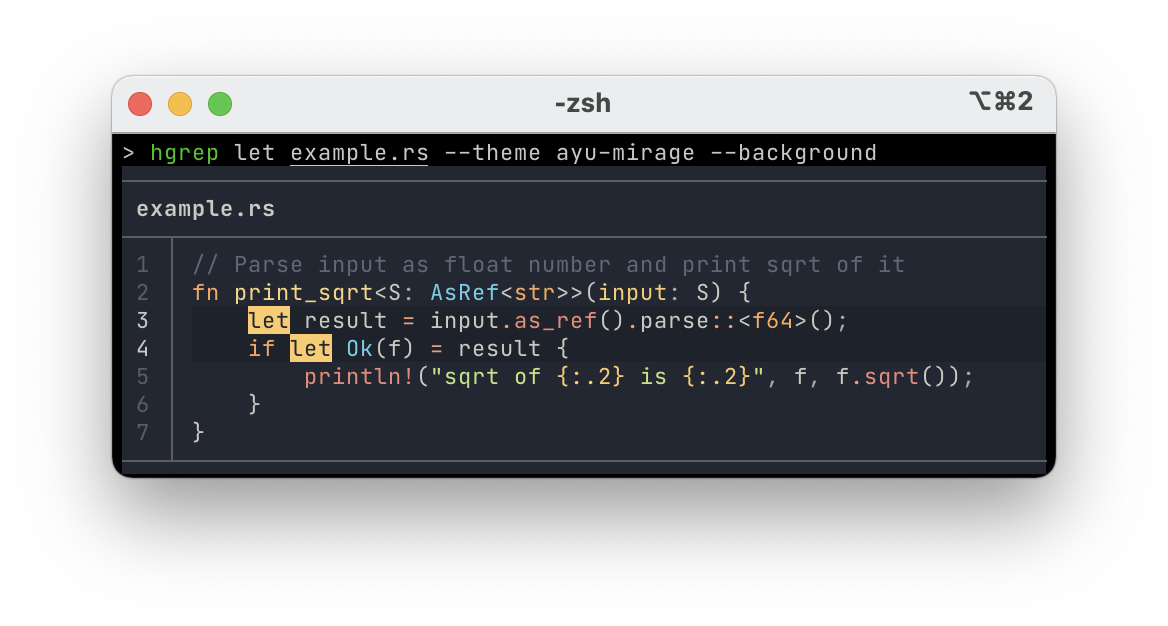
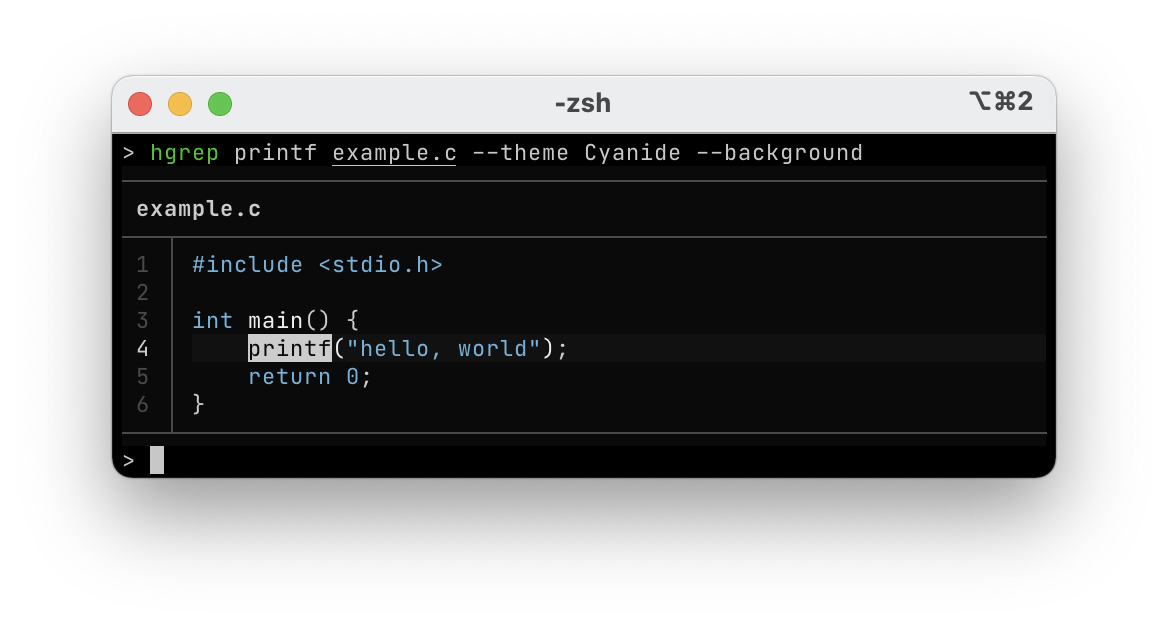
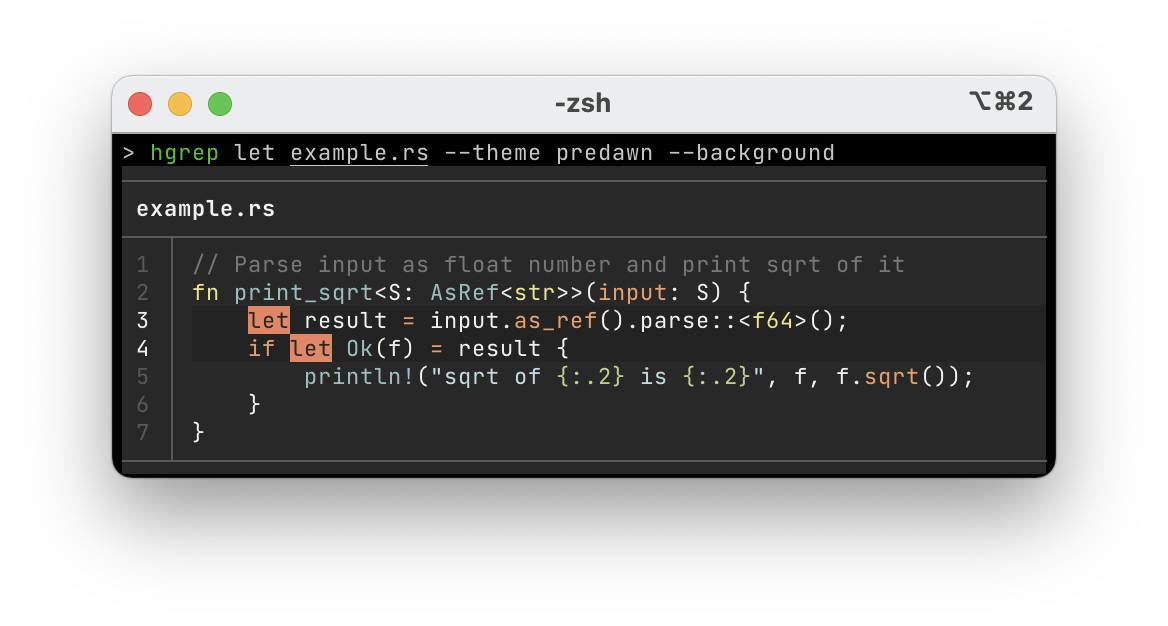
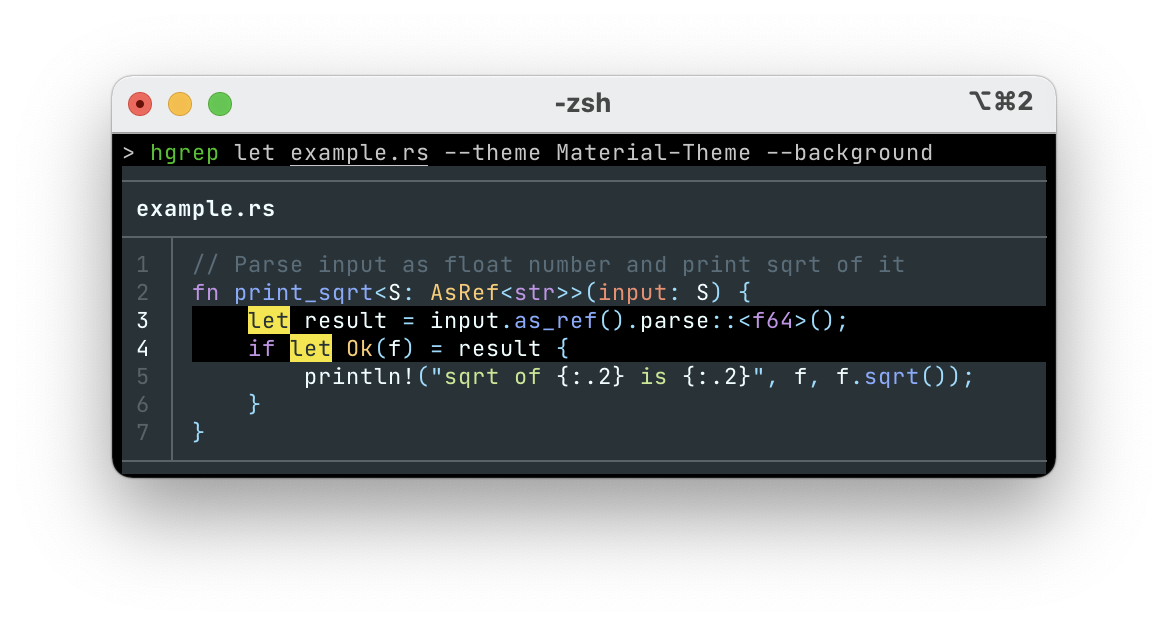
--background) is supported. This is useful when your favorite theme does not fit to your terminal's background color. - Themes are optimized for showing matched results. And some new themes like ayu or predawn are available. See the
output of
--list-themesto know the list of all themes. - Compatibility for old terminals is better. It automatically changes the default theme to 'ansi' for 16-colors terminals. And
it provides
--ascii-linesflag to draw border lines with ascii characters instead of Unicode characters like '├', '┬', and so on.
batprinter- Implementation is battle-tested. It is already used by many users on many platforms and terminals.
- The behavior is compatible with
batcommand. Its output layout is the same asbatcommand respectingBAT_THEMEandBAT_STYLEenvironment variables. It can load bat's custom assets cache.
syntect is the default printer.
Themes only available with syntect printer
| ayu-dark | ayu-mirage | ayu-light |
|---|---|---|
 |
 |
 |
| Cyanide | predawn | Material |
|---|---|---|
 |
 |
 |
(and more...)
Why is performance of syntect printer better?
Syntax highlighting is very CPU-heavy task. Many regular expression matchings happen at each line. For accurate syntax highlighting, a highlighter needs to parse the syntax from the beginning of file. It means that printing a match at the last line of a file is a much heavier task than printing a match at the first line of the file.
Since syntect printer is designed for calculating syntax highlights per file in parallel, its performance is much better. It's
2x~4x faster than bat printer in some experiments. More match results get better performance.
In contrast, bat is not designed for multi-threads. It's not possible to share bat::PrettyPrinter instance across threads. It
means that printing match results including syntax highlighting must be done in a single thread.
syntect printer sequence |
bat printer sequence |
|---|---|
 |
 |
Using pager
When you want a pager to see the output interactively, please pipe the output to external commands like less. $COLUMNS needs
to be passed to --term-width option because the terminal width is fixed to 80 characters when stdout is not connected to TTY.
If you frequently use a pager, it is a good option to define a wrapper shell function like below:
function hgrep() {
    command hgrep --term-width "$COLUMNS" "$@" | less -R
}
Change color theme and layout
The default color theme is Monokai Extended respecting bat command's default. Other theme can be specified via --theme
option. To know names of themes, try --list-themes flag.
hgrep --theme Nord ...
The default layout is 'grid'. To reduce borderlines to use space more efficiently, --no-grid option is available.
hgrep --no-grid ...
When you use bat printer, hgrep respects BAT_THEME and BAT_STYLE environment variable. Theme set to BAT_THEME
is used by default. And the grid layout is used when plain or header or numbers is set to BAT_STYLE. syntect
printer does not look at these variables. To set default theme, please use a command alias in your shell (See
'Set default command options' for details).
export BAT_THEME=OneHalfDark
export BAT_STYLE=numbers
hgrep -p bat ...
When syntect printer is used, painting background colors is supported with --background flag.
hgrep --background ...
Set default command options
HGREP_DEFAULT_OPTS environment variable is available. Options set to the variable are prepended to the command line arguments
when you run hgrep command.
Here are some examples:
# Set the `ayu-dark` color theme with background colors
export HGREP_DEFAULT_OPTS='--theme ayu-dark --background'
# Same as `hgrep --theme ayu-dark --background pattern paths`
hgrep pattern paths...

# Disable automatic filtering
export HGREP_DEFAULT_OPTS='--no-ignore --hidden'

# Use 'bat' printer by default
export HGREP_DEFAULT_OPTS='--printer bat'
The command line arguments in the environment variable are parsed with shlex. Use quotes for including spaces in some command line option arguments. For example:
$Env:HGREP_DEFAULT_OPTS = "--glob '!C:\Program Files'"
Command options
- Common options
--min-context NUM(-c): Minimum lines of leading and trailing context surrounding each match. Default value is 3--max-context NUM(-C): Maximum lines of leading and trailing context surrounding each match. Default value is 6--no-grid(-G): Remove borderlines for more compact output. --grid flag is an opposite of this flag--tab NUM: Number of spaces for tab character. Set 0 to pass tabs through. Default value is 4--theme THEME: Theme for syntax highlighting. Default value is the same asbatcommand--list-themes: List all available theme names and their samples for --theme option--printer: Printer to print the match results. 'bat' or 'syntect' is available. Default value is 'bat'--term-width NUM: Width (number of characters) of terminal window--wrap MODE: Text-wrapping mode. 'char' enables character-wise text-wrapping. 'never' disables text-wrapping. Default value is 'char'--first-only(-f): Show only the first code snippet per file--encoding(-E): Specify the text encoding that hgrep will use on all files printed like 'sjis'
- Only for
ripgrepfeature--no-ignore: Don't respect ignore files (.gitignore, .ignore, etc.)--ignore-case(-i): When this flag is provided, the given pattern will be searched case insensitively--smart-case(-S): Search case insensitively if the pattern is all lowercase. Search case sensitively otherwise--hidden(-.): Search hidden files and directories. By default, hidden files and directories are skipped--unrestricted(-u): Reduce the level of "smart" filtering by repeated uses (up to 2). A single flag-uis equivalent to --no-ignore. Two flags-uuare equivalent to --no-ignore --hidden. Unlike ripgrep, three flags-uuuare not supported since hgrep doesn't support --binary flag--glob GLOB...(-g): Include or exclude files and directories for searching that match the given glob--glob-case-insensitive: Process glob patterns given with the -g/--glob flag case insensitively--fixed-strings(-F): Treat the pattern as a literal string instead of a regular expression--word-regexp(-w): Only show matches surrounded by word boundaries--follow(-L): When this flag is enabled, hgrep will follow symbolic links while traversing directories--multiline(-U): Enable matching across multiple lines--multiline-dotall: Enable "dot all" in your regex pattern, which causes '.' to match newlines when multiline searching is enabled--crlf: When enabled, hgrep will treat CRLF (\r\n) as a line terminator instead of just\n. This flag is useful on Windows--mmap: Search using memory maps when possible. mmap is disabled by default unlike hgrep--max-count NUM(-m): Limit the number of matching lines per file searched to NUM--max-depth NUM: Limit the depth of directory traversal to NUM levels beyond the paths given--max-filesize NUM+SUFFIX?: Ignore files larger than NUM in size. This does not apply to directories.The input format accepts suffixes of K, M or G--line-regexp(-x): Only show matches surrounded by line boundaries. This is equivalent to putting^...$around the search pattern--invert-match(-v): Invert matching. Show lines that do not match the given pattern--pcre2(-P): When this flag is present, hgrep will use the PCRE2 regex engine instead of its default regex engine--type TYPE(-t): Only search files matching TYPE. This option is repeatable--type-not TYPE(-T): Do not search files matching TYPE. Inverse of --type. This option is repeatable--type-list: Show all supported file types and their corresponding globs--one-file-system: When enabled, the search will not cross file system boundaries relative to where it started from--no-unicode: Disable unicode-aware regular expression matching--regex-size-limit NUM+SUFFIX?: The upper size limit of the compiled regex. The default limit is 10M. For the size suffixes, see --max-filesize--dfa-size-limit NUM+SUFFIX?: The upper size limit of the regex DFA. The default limit is 10M. For the size suffixes, see --max-filesize
- Only for
syntect-printerfeature--background: Paint background colors. This is useful when your favorite theme does not fit to your terminal's background color--ascii-lines: Use ASCII characters for drawing border lines instead of Unicode characters
- Only for
bat-printerfeature--custom-assets: Load bat's custom assets from cache. Note that this flag may not work with some version ofbatcommand
See --help for the full list of available options in your environment.
Text encoding
hgrep supports various encodings thanks to encoding_rs crate.
--encoding (-E) command line option can specify the file encoding explicitly. For example, the following command will assume
matched files are encoded with Shift JIS.
hgrep --encoding sjis pattern
In addition, hgrep tries to detect file encodings from BOM. UTF-16LE, UTF-16BE, and UTF-8 can be detected automatically.
When no file encoding is detected from BOM, hgrep assumes files are encoded in UTF-8 as default encoding. If malformed UTF-8
sequences are contained, they are replaced with the replacement character U+FFFD.
Generate completion scripts
Shell completion script for hgrep command is available. --generate-completion-script option generates completion script and
prints it to stdout. Bash, Zsh, Fish, PowerShell, Elvish, Nushell are
supported. See --help for more details.
Here is an example of setup the completion script on Zsh.
# Let's say we set comps=~/.zsh/site-functions
hgrep --generate-completion-script zsh > ~/.zsh/site-functions/_hgrep
chmod +x ~/.zsh/site-functions/_hgrep
Generate man page
Manual page for hgrep command is available. --generate-man-page flag generates the man page and prints it to stdout.
This is an example to generate man page in /usr/local/share.
hgrep --generate-man-page > /usr/local/share/man/man1/hgrep.1

# See the manual page
man hgrep
Exit status
hgrep command returns the exit status as follows.
| Status | Description |
|---|---|
| 0 | One or more matches were found |
| 1 | No match was found |
| 2 | Some error happened (e.g. IO error) |
Terminal color support detection
hgrep automatically detects 24-bit or 256 or 16 colors support of your terminal application by the following logic.
COLORTERM
At first, hgrep checks COLORTERM environment variable. When truecolor or 24bit is set to the variable, 24-bit
colors are enabled.
On Linux or macOS or FreeBSD or NetBSD, hgrep tries to detect your terminal's color support from terminfo.
On Windows, hgrep enables 24-bit colors if the Windows version is 10.0.15063 or later becuase OS version 10.0.15063 (Windows 10 1703) started to support 24-bit colors. Otherwise it enables only 16-colors.
TERM
When COLORTERM is not set, hgrep checks TERM environment variable which the terminal name is set.
- When it ends with
-truecoloror-24bit, 24-bit colors are enabled. - When it ends with
-256coloror-square, 256 colors are enabled.
Fallback
When no color support was detected from COLORTERM nor TERM, htrep eventually falls back to 256 colors, which are most widely
supported by popular terminals.
Versioning
At this point the major version is fixed to 0. The minor version is bumped when some breaking changes are added. The patch version is bumped when some new compatible changes are added and/or some bug fixes are added.
Alternatives
Some other alternatives instead of using hgrep.
Small ShellScript to combine ripgrep and bat
ripgrep and bat are well-designed tools so they can be used as building parts of a small script.
rg -nH ... | while IFS= read -r line; do
  # Parse $line and calculate the range of snippet and highlighted lines
  file=...
  lines=...
  range=...

  # Show matched snippet
  bat -H ${lines} -r ${range} ${file}
done
It works fine but hgrep is more optimized for this usage.
- When the matches are near enough, the lines are printed in one snippet.
- Performance is much better than running
batprocess per matched line. - hgrep computes efficient context lines based on some heuristics.
- hgrep is available where ShellScript is unavailable (e.g. PowerShell).
Fuzzy finder like fzf with bat preview window
Fuzzy finder like fzf provides a preview window functionality and bat can print the match in the preview window.
grep -nH ... | \
    fzf --preview='bat --pager never --color always -H {2} -r {2}: -p {1}' --delimiter=:
This usage is great when you need the incremental search, but you need to check each preview of matches one by one.
hgrep focuses on surveying all the matches.
Bug reporting
Please create an issue on GitHub. Ensure to describe how to reproduce the bug.
License
hgrep is distributed under the MIT license.