mprisence
| Crates.io | mprisence |
| lib.rs | mprisence |
| version | 1.2.4 |
| created_at | 2025-08-11 14:01:01.281838+00 |
| updated_at | 2025-08-11 17:17:20.86632+00 |
| description | A powerful Discord Rich Presence for MPRIS media players |
| homepage | https://github.com/lazykern/mprisence |
| repository | https://github.com/lazykern/mprisence |
| max_upload_size | |
| id | 1790217 |
| size | 274,395 |
 Phusit Somboonyingsuk (lazykern)
documentation
README
mprisence


A highly customizable Discord Rich Presence client for MPRIS media players. Supports VLC, MPV, RhythmBox, and many other Linux music and media players.
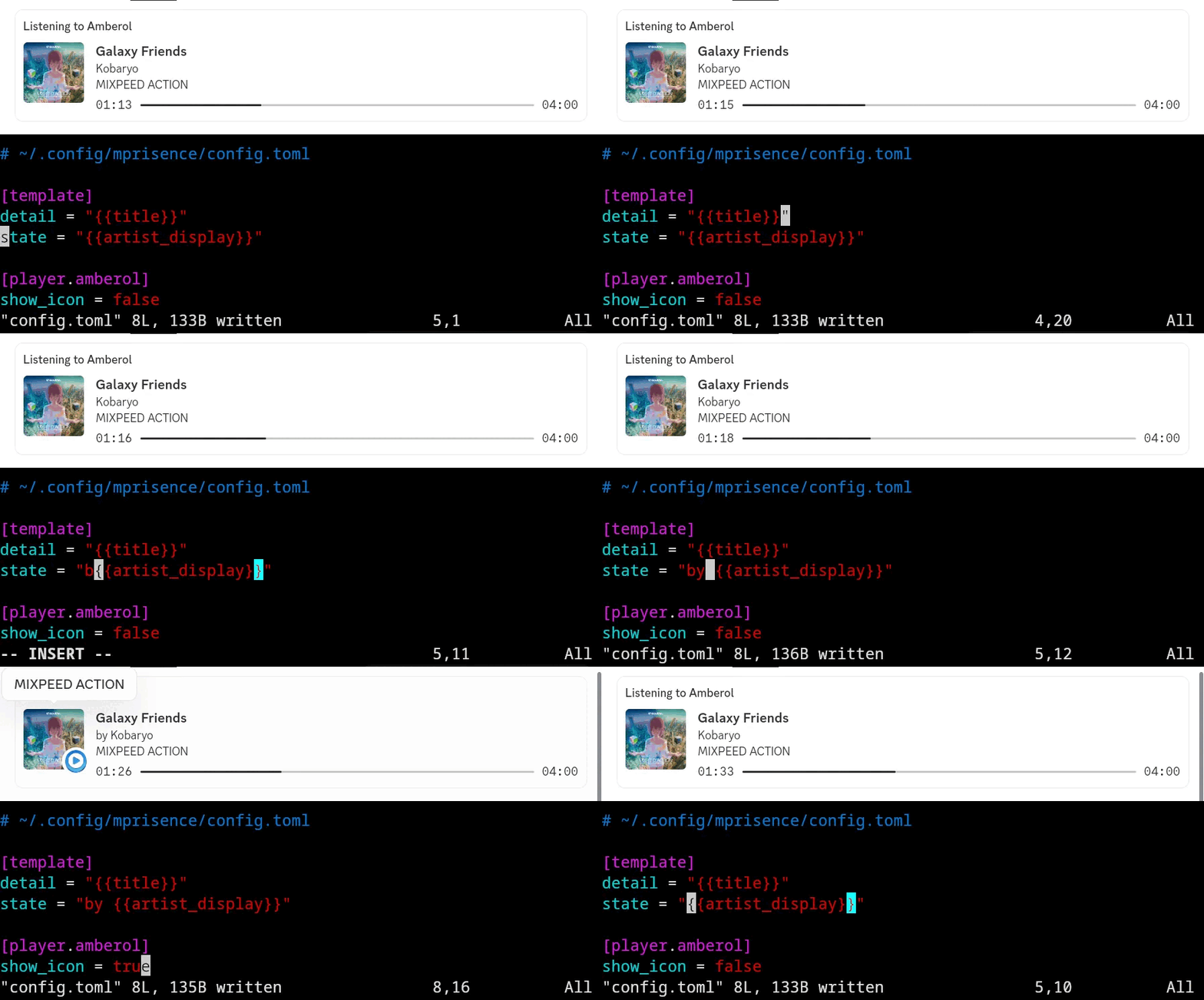
(Note: Actual appearance depends on your configuration and the specific media player)
Preconfigured Players
Ready to use with popular media players (configured in config.default.toml):
- Media Players: VLC, MPV, Audacious, Elisa, Lollypop, Rhythmbox, CMUS, MPD, Musikcube, Clementine, Strawberry, Amberol, SMPlayer, Supersonic, Feishin
- Streaming: YouTube Music, Spotify (disabled by default)
- Browsers (disabled by default): Firefox, Zen, Chrome, Edge, Brave
Feel free to create a new issue if you want your player name+icon to be recognized by mprisence!
Features
| Universal Media Player Support | Works with any MPRIS-compatible Linux media player. |
| Advanced Templating | Utilize the power of Handlebars templates for complete control over your presence text, including conditionals and helpers. |
| Online/Local Cover Arts | Automatically finds and displays the right album or video art. It can grab it from the web or use your own local files. |
| Live Configuration (Hot Reload) | Change your config.toml and see the updates reflected instantly without restarting the service. |
| Content-Aware Activity | Automatically sets your Discord status to "Listening", "Watching", etc., based on the media type (configurable). |
| Player-Specific Settings | Customize Discord App IDs, icons, and behavior for individual players. |
| Detailed Metadata | Access a rich set of metadata (including technical audio details) within your templates. |
Prerequisites
- For running: A desktop environment with an active D-Bus session (standard on most Linux desktops).
- For service management:
systemd(user instance). - For manual installation/building from source:
rustcandcargo(latest stable version recommended)git(to clone the repository)
Installation and Setup
Package Manager
Arch Linux
# Install the stable version
yay -S mprisence

# Or, install the latest development version
yay -S mprisence-git
Debian, Ubuntu, and derivatives
Download the .deb package from the GitHub Releases page and install it:
sudo dpkg -i /path/to/mprisence_*.deb
Manual Installation
This method is for other Linux distributions, or if you prefer to install from source or crates.io. It requires a few manual setup steps.
Step 1: Install the mprisence binary
Choose one of the following ways to get the executable:
Option A: From Crates.io (requires Rust)
cargo install mprisence
This will install the binary to ~/.cargo/bin/. Ensure this directory is in your $PATH.
Option B: From GitHub Releases (pre-compiled)
Download the ...-unknown-linux-gnu.tar.gz archive from the GitHub Releases page. Extract it, and place the mprisence binary in a directory included in your system's $PATH (e.g., ~/.local/bin or /usr/local/bin).
Option C: From Source (for development)
# Clone the repository
git clone https://github.com/lazykern/mprisence.git
cd mprisence

# Install from local source
cargo install --path .
This also installs the binary to ~/.cargo/bin/.
Step 2: Set up Configuration
mprisence looks for its configuration at ~/.config/mprisence/config.toml.
-
Create the configuration directory:
mkdir -p ~/.config/mprisence -
Download the example configuration:
curl -o ~/.config/mprisence/config.toml https://raw.githubusercontent.com/lazykern/mprisence/main/config/config.example.tomlNow you can edit this file to customize mprisence. See the Configuration Reference section for more details.
Step 3: Set up and Run the Service
To have mprisence start automatically on login, set up the systemd user service.
-
Create the systemd user directory if it doesn't exist:
mkdir -p ~/.config/systemd/user -
Download the service file: The provided service file is configured to find the
mprisencebinary in~/.cargo/bin/.curl -o ~/.config/systemd/user/mprisence.service https://raw.githubusercontent.com/lazykern/mprisence/main/mprisence.serviceNote: If you placed the binary in a different location (e.g.,
/usr/local/bin), you must edit~/.config/systemd/user/mprisence.serviceand change theExecStartpath. -
Enable and start the service:
systemctl --user enable --now mprisenceThis command enables
mprisenceto start at login and starts it immediately.
Managing the Service
Once the service is installed (either manually or via a package), you can manage it using systemctl --user:
# Check service status
systemctl --user status mprisence

# Restart the service after changing the config
systemctl --user restart mprisence

# View detailed logs
journalctl --user -u mprisence -f

# Stop and disable the service
systemctl --user disable --now mprisence
Configuration
mprisence is highly configurable via ~/.config/mprisence/config.toml (or $XDG_CONFIG_HOME/mprisence/config.toml).
After following the installation steps, you can modify ~/.config/mprisence/config.toml to your liking. The application will hot-reload most configuration changes automatically.
Local Album Covers
mprisence uses Imgbb as image hosting provider to host your local album covers, you need to get an ImgBB API key (get one at: https://api.imgbb.com/ after you logged in) and update the config as below
# [cover.provider]
# provider = ["imgbb", "musicbrainz"] # this will prioritize imgbb (originally ["musicbrainz", "imgbb"])
# or just set it to ["imgbb"] so it will only use local cover art only

[cover.provider.imgbb]
api_key = "YOUR_API_KEY_HERE"
Notes:
- Clear cache:
rm -rf ~/.cache/mprisence/cover_art.
Configuration Reference
config.example.toml: Detailed options and explanations.config.default.toml: Default configurations for popular players.src/metadata.rs: Definitive source for all available template variables.
Basic Configuration Example
# Basic settings
# Whether to clear Discord activity when media is paused
clear_on_pause = true

# How often to update Discord presence (in milliseconds)
interval = 2000

# Note: Triple braces `{{{variable}}}` are used to prevent HTML escaping,
# which is generally desired for Discord presence fields.
# See: https://handlebarsjs.com/guide/#html-escaping

# Display template
[template]
# First line in Discord presence
detail = "{{{title}}}"

# Second line in Discord presence - using Handlebars array iteration
state = "{{#each artists}}{{this}}{{#unless @last}} & {{/unless}}{{/each}}"
# or just use
# state = "{{{artist_display}}}"

# Text shown when hovering over the large image - using conditional helpers
large_text = "{{#if album}}{{{album}}}{{#if year}} ({{{year}}}){{/if}}{{#if album_artist_display}} by {{{album_artist_display}}}{{/if}}{{/if}}"

# Text shown when hovering over the small image (player icon)
# Only visible when show_icon = true in player settings
small_text = "{{#if player}}Playing on {{{player}}}{{else}}MPRIS{{/if}}"

# Activity type settings
[activity_type]
# Auto-detect type (audio -> "listening", video -> "watching")
use_content_type = true
# Default type: "listening", "watching", "playing", or "competing"
default = "listening"

# Time display settings
[time]
# Show progress bar/time in Discord
show = true
# true = show elapsed time, false = show remaining time
as_elapsed = true
Cover Art Setup
[cover]
# File names (without extension) to search for local art (e.g., cover.jpg, folder.png)
file_names = ["cover", "folder", "front", "album", "art"]
# How many parent directories to search upwards for local art (0 = same dir only)
local_search_depth = 2

[cover.provider]
# Cover art providers in order of preference
# (imgbb will be used as a fallback if musicbrainz fails or local art isn't found)
provider = ["musicbrainz", "imgbb"] # Also checks local files first based on above

[cover.provider.musicbrainz]
# Minimum score (0-100) for MusicBrainz matches. Higher = stricter.
min_score = 95

[cover.provider.imgbb]
# Your ImgBB API key (get one at: https://api.imgbb.com/)
api_key = "YOUR_API_KEY_HERE"
# How long to keep uploaded images (in seconds, default: 1 day)
expiration = 86400
Player-Specific Configuration
# Use 'mprisence players list' to get the correct player identity (e.g., vlc_media_player)

# Default settings applied to ALL players unless overridden below
[player.default]
ignore = false # Set to true to disable presence for all players by default
app_id = "1121632048155742288" # Default Discord Application ID
icon = "https://raw.githubusercontent.com/lazykern/mprisence/main/assets/icon.png" # Default icon URL
show_icon = false # Show player icon as small image by default?
allow_streaming = false # Allow web/streaming content by default?

# Override settings for a specific player (VLC in this example)
[player.vlc_media_player]
# You can override any key from [player.default] here
app_id = "YOUR_VLC_APP_ID_HERE" # Use a VLC-specific Discord App ID
icon = "https://example.com/vlc-icon.png" # Use a VLC-specific icon
show_icon = true # Show the VLC icon
allow_streaming = true # Allow streaming content for VLC
# You could also add 'override_activity_type = "watching"' here if desired

# Example: Ignore Spotify
# [player.spotify]
# ignore = true
CLI Commands
# Get help
mprisence --help

# Run without system service
mprisence

# List available MPRIS players
mprisence players list

# Show detailed player information including metadata and config
mprisence players list --detailed

# Show current configuration
mprisence config

# Show version
mprisence version

# Enable more verbose logging
RUST_LOG=debug mprisence # or RUST_LOG=trace mprisence
Troubleshooting
Common Issues
-
Discord Presence Not Showing / Updating
- Is Discord running? Ensure the Discord desktop client is open.
- Is your player running and MPRIS-compatible? Run
mprisence players listto see detectable players. - Is the service running?
systemctl --user status mprisence - Discord Settings: Check
Discord Settings -> Registered Games / Activity Privacy. EnsureDisplay current activity as a status message.is ON. Sometimes toggling this off and on helps. Addmprisenceif it's not listed. - Correct App ID? Verify the
app_idin your config matches a valid Discord application ID. - Logs: Check
journalctl --user -u mprisence -for runRUST_LOG=debug mprisencefor errors.
-
Cover Art Not Displaying
- Check the logs: Run with
RUST_LOG=debug mprisenceto see the cover art process. - Provider Order: Cover art is checked in this order: Cache -> Direct URL (from metadata) -> Local Files -> Configured Providers (e.g., MusicBrainz, ImgBB).
- MusicBrainz: Does the track metadata (title, artist, album) accurately match the MusicBrainz database? Check the
min_scorein your config. - ImgBB:
- Is a local file available (embedded or matching
file_namesin the folder/parent folders)? ImgBB is primarily used to upload local art. - Is your
api_keyin[cover.provider.imgbb]correct and valid? - Is the image file format supported and readable?
- Is a local file available (embedded or matching
- Cache: Try clearing the cache (
rm -rf ~/.cache/mprisence/cover_art) if you suspect stale entries.
- Check the logs: Run with
-
Service Issues
- Use the commands mentioned in the Autostarting / Service Management section to check status (
status), view logs (journalctl), and manage the service (start,stop,restart).
- Use the commands mentioned in the Autostarting / Service Management section to check status (
-
Configuration Issues _Syntax Errors: Validate your
config.tomlusing an online TOML validator ortoml-lint. _ Defaults: If unsure, temporarily remove your~/.config/mprisence/config.tomlto test with the built-in defaults.
Contributing
Contributions are welcome! Please feel free to open an issue to report bugs, suggest features, or discuss changes. If you'd like to contribute code, please open a pull request.
License
This project is licensed under the MIT License - see the LICENSE file for details.