openjlc
| Crates.io | openjlc |
| lib.rs | openjlc |
| version | 2.23.7 |
| created_at | 2025-04-03 09:37:35.831857+00 |
| updated_at | 2025-09-17 12:19:15.10381+00 |
| description | Ultra-fast Gerber conversion tool. |
| homepage | https://github.com/canmi21/openjlc |
| repository | https://github.com/canmi21/openjlc |
| max_upload_size | |
| id | 1617912 |
| size | 6,038,180 |
 Canmi (canmi21)
documentation
README
OpenJLC

OpenJLC


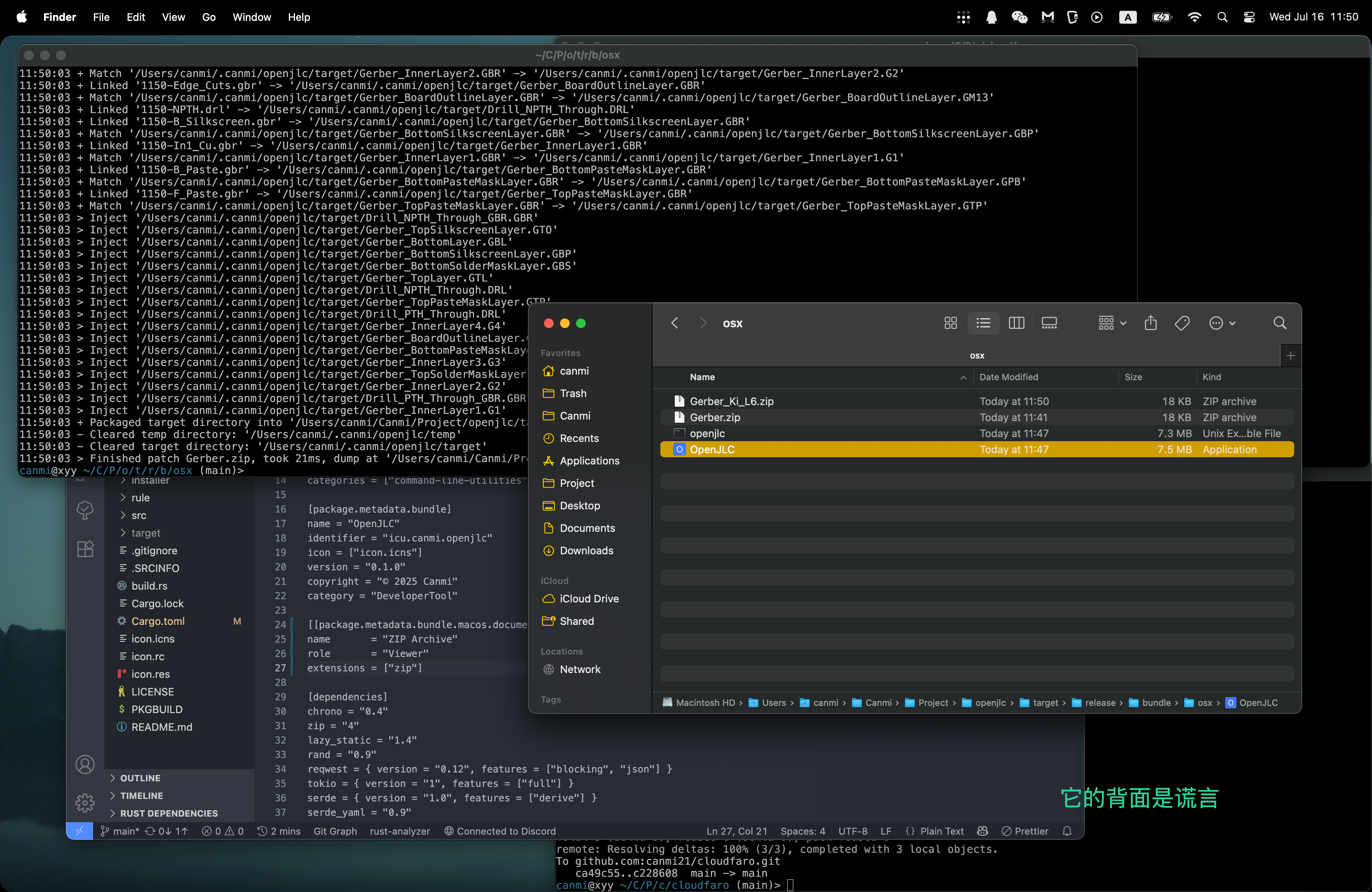
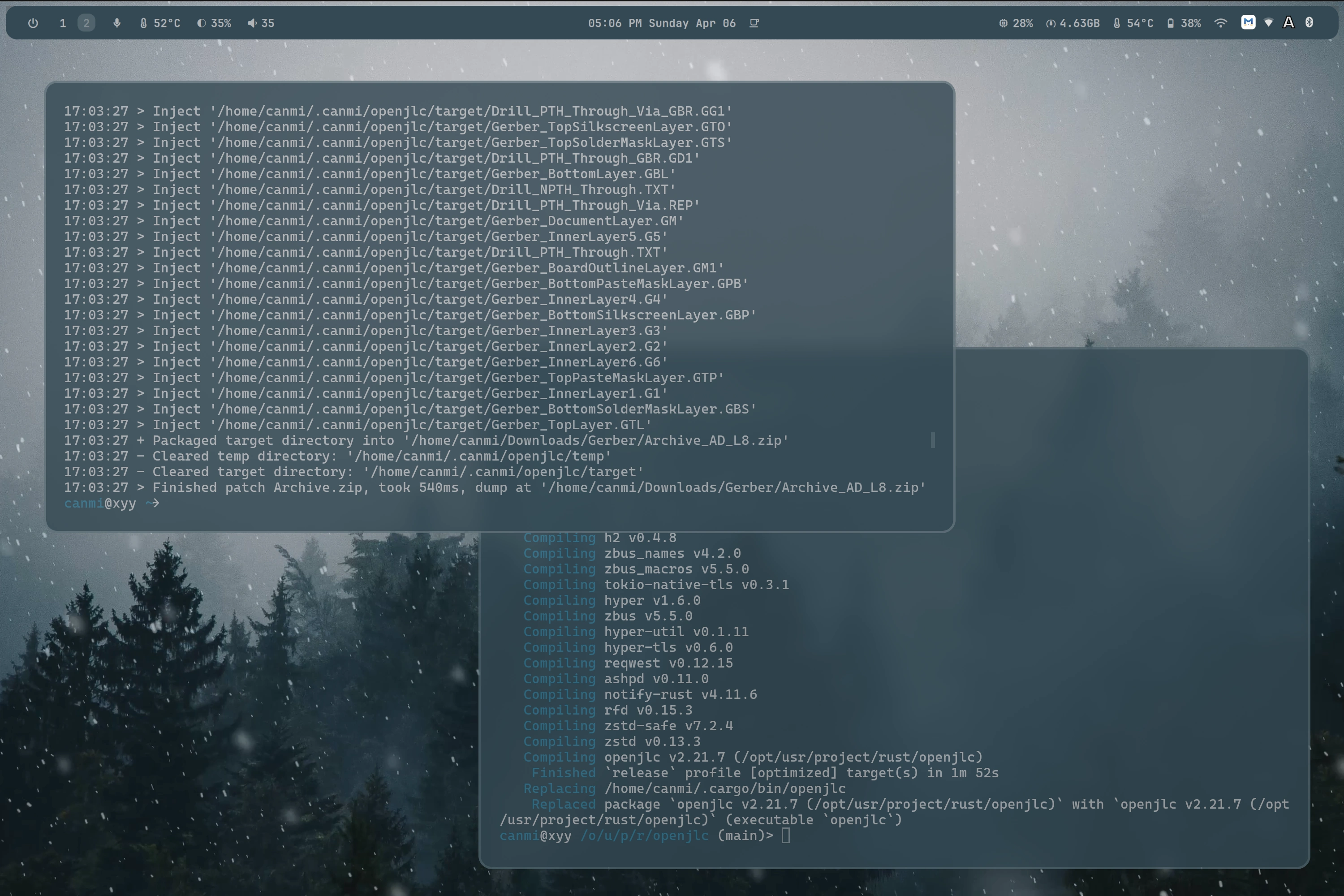
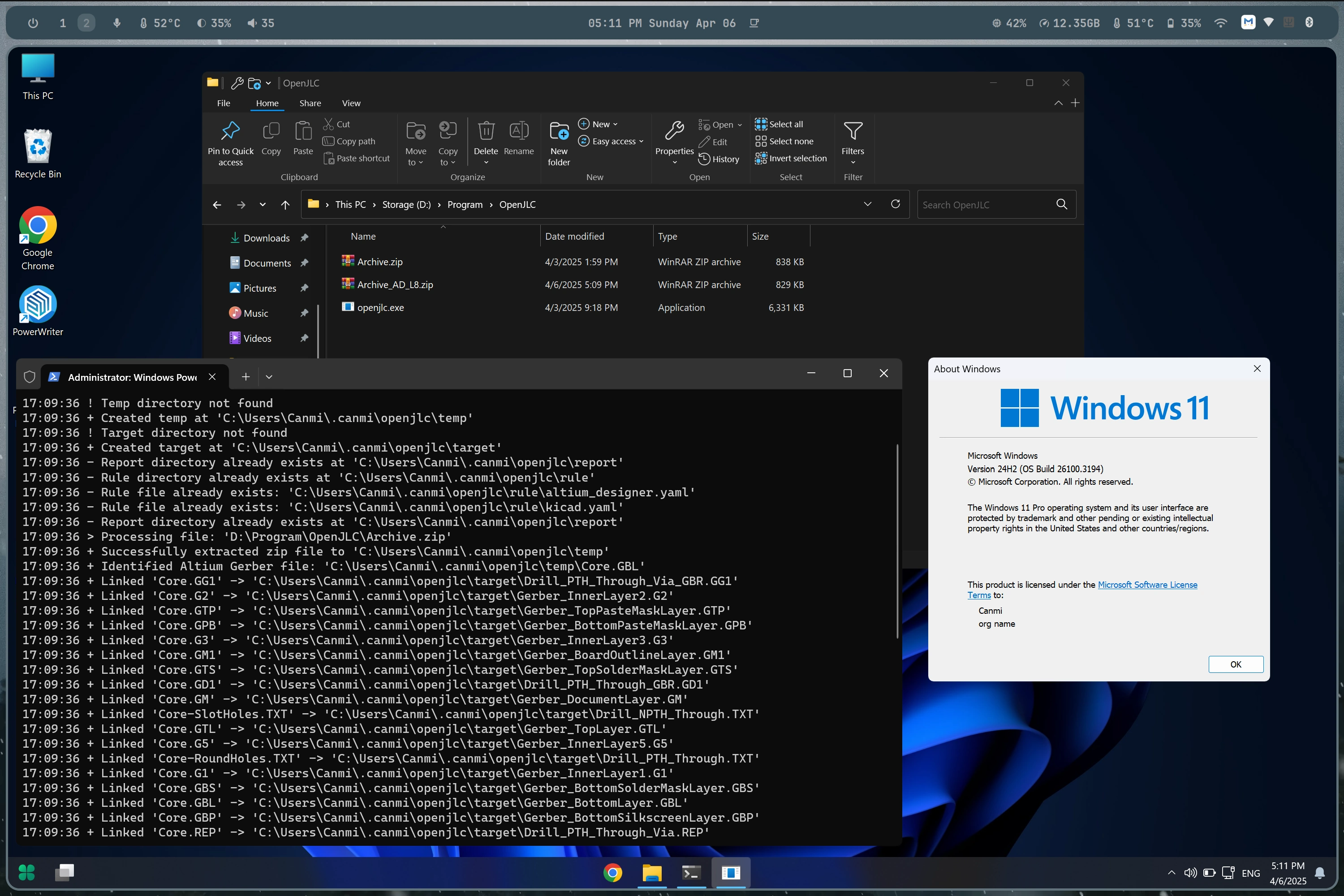
As they say, your design workflow shouldn't be bogged down by tedious format conversions! OpenJLC simplifies Gerber to JLC conversion from AD, KiCad, and more. Effortlessly convert, share, and design.
👋🏻 Getting Started
入门指南
Whether for users or professional developers, OpenJLC will be your open information playground. Please be aware that OpenJLC is currently under active development, and feedback is welcome for any issue encountered.
Feel free to try it using the following methods:
请使用以下方法安装:
| 🚀 Install via Cargo 通过 Cargo 安装 | cargo install openjlc |
| 📦 Arch Linux AUR Arch Linux AUR 安装 | Install via: yay -S openjlc 通过: yay -S openjlc 安装 |
| ❇️ Cross-platform builds 跨平台构建 | Prebuilt binaries for Linux, Windows, macOS available on releases Linux、Windows、macOS 的预构建二进制文件可在 releases 获取 |
| ⚡️ Run directly 直接运行 | openjlc file.zip or path_to_file/file.zip |
| 🗂️ Supported input formats 支持的输入格式 | KiCad, Altium Designer, EasyEDA — and more on the way! |
| 🛠️ Gerber analyzer Gerber 分析器 | Auto label output file with -{detected-eda}-L{layer} 使用 -{detected-eda}-L{layer} 自动标记输出文件 |
| 🔄 Fast updates 快速更新 | Track latest changes via ci 通过 ci 跟踪最新更改 |
| 📣 Contribute / Feedback 贡献 / 反馈 | Create issues, pull requests, or just ⭐ the repo to support us! 创建问题、拉取请求,或只是 ⭐ 仓库来支持我们! |
食用方式
1. 通过 cli 使用
打开终端输入
openjlc example.zip
这样会默认在当前目录下查找
openjlc /path/to/example.zip
或者指定路径查找
2. 通过 第三方 事件触发器使用
Windows 下使用注册表修改右键菜单,本质的就是代替你给文件执行了指令
macOS 下使用 App bundle 方式自行编译签名,可以实现类似打开方式的劫持
macOS 下可以使用智能文件夹 + Apple Script 实现某文件夹拖动即执行转换
Linux 下可以使用就更多了 基于文件系统的 watch, 在某文件夹下找到 ZIP 类型文件的时候会尝试扫描列表判断是不是 Gerber
(但是说实话你都用Linux了,开个终端好像不是更简单) 某些 Hyprland 甚至强制依赖快捷键终端
⚡️ Lightning-Fast Speed
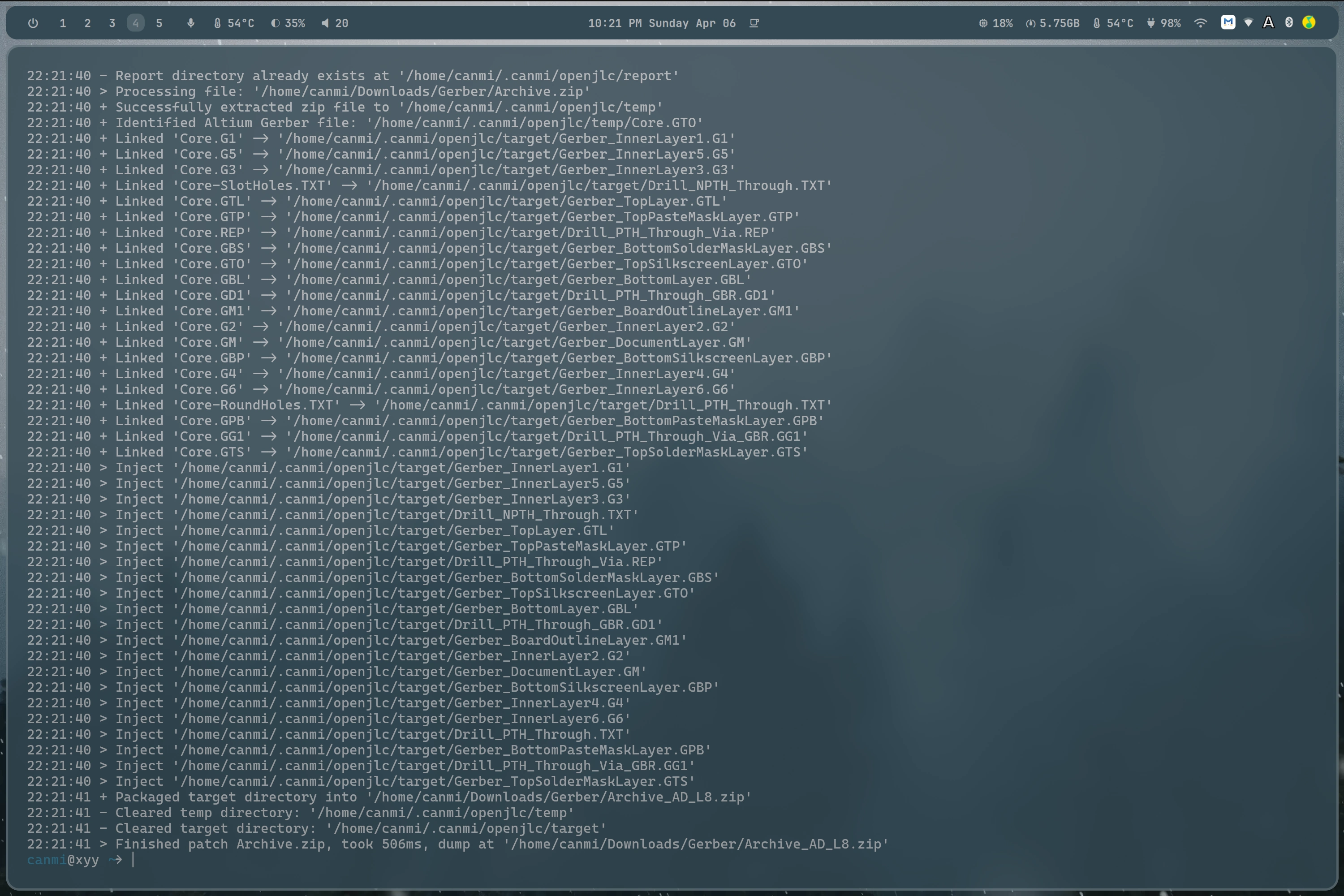
Powered by Rust's high performance, OpenJLC can convert an 8-layer PCB from Altium in under 500ms.
🧩 Uniform Output Naming
We provide powerful regular expression rules to auto-analyze and rename output files, giving you a clean and consistent output structure.

🛠️ Extra Drill File Handling
Unlike other conversion tools, OpenJLC supports auto-detection and classification of drill files — no manual steps required.
Altium
Drill_NPTH_Through: "(?i).*slot\\s?h?oles.*\\.txt$"
Drill_PTH_Through: "(?i).*round\\s?h?oles.*\\.txt$"
Drill_PTH_Through_Via: "(?i)\\.REP$|.*via.*\\.txt$"
Drill_PTH_Through_GBR: "(?i)\\.GD1$"
Drill_PTH_Through_Via_GBR: "(?i)\\.GG1$"
KiCad
Drill_PTH_Through: "(?i)(?!.*NPTH).*\\.DRL$"
Drill_PTH_Through_Via: "(?i).*\\bVIA\\b.*\\.DRL$"
Drill_NPTH_Through: "(?i).*\\bNPTH\\b.*\\.DRL$"
Drill_PTH_Through_GBR: "(?i)^[^N]*PTH[^N]*\\.GBR$"
Drill_PTH_Through_Via_GBR: "(?i).*\\bVIA\\b.*\\.GBR$"
Drill_NPTH_Through_GBR: "(?i).*\\bNPTH\\b.*\\.GBR$"
🖱️ Right-Click Integration on Windows
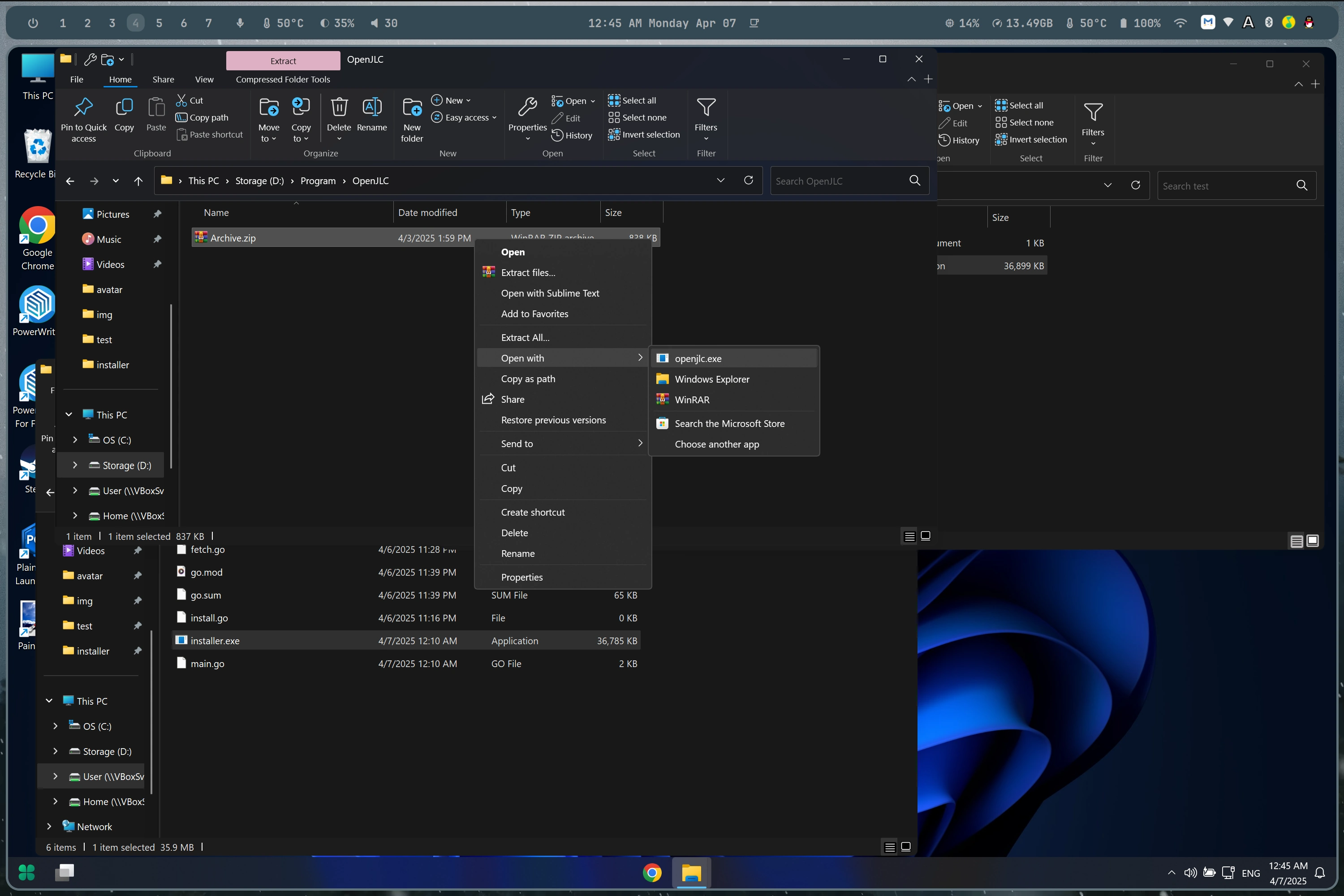
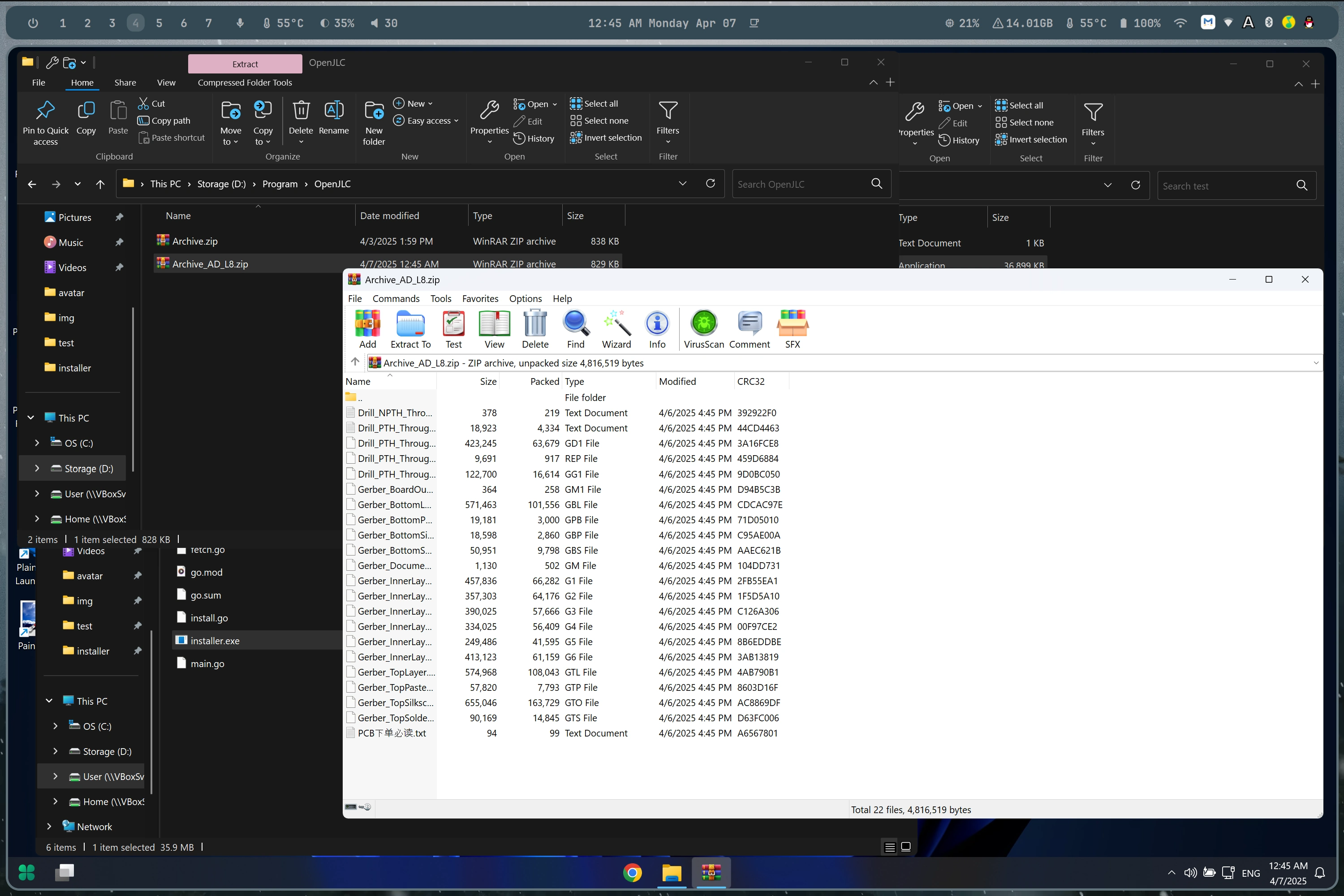
On Windows, OpenJLC supports seamless right-click processing for .zip Gerber archives. With just one click, you can get clean and correctly named outputs — even after processing by the Windows file system.
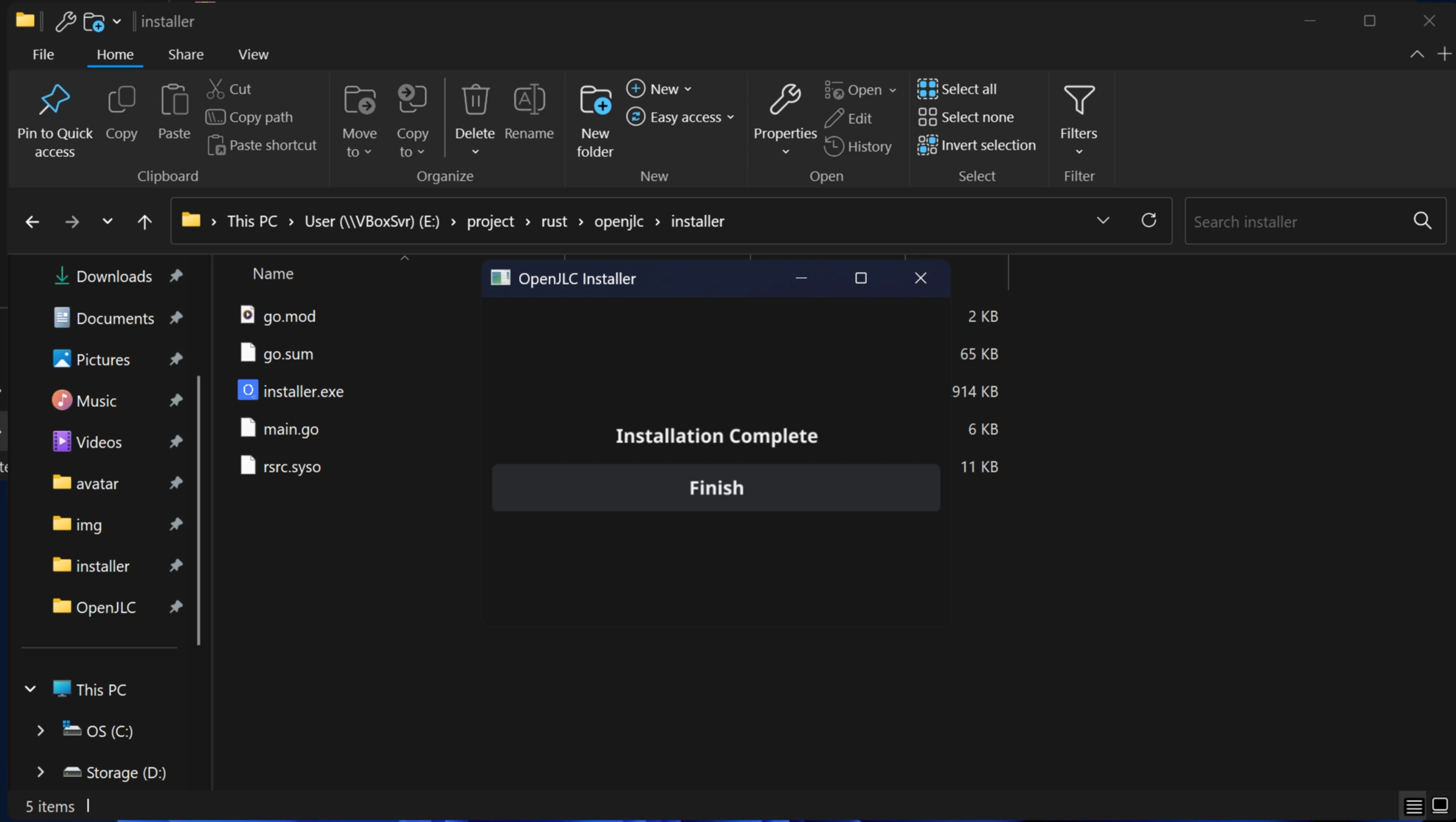
📦 Easy GUI Installer for Windows
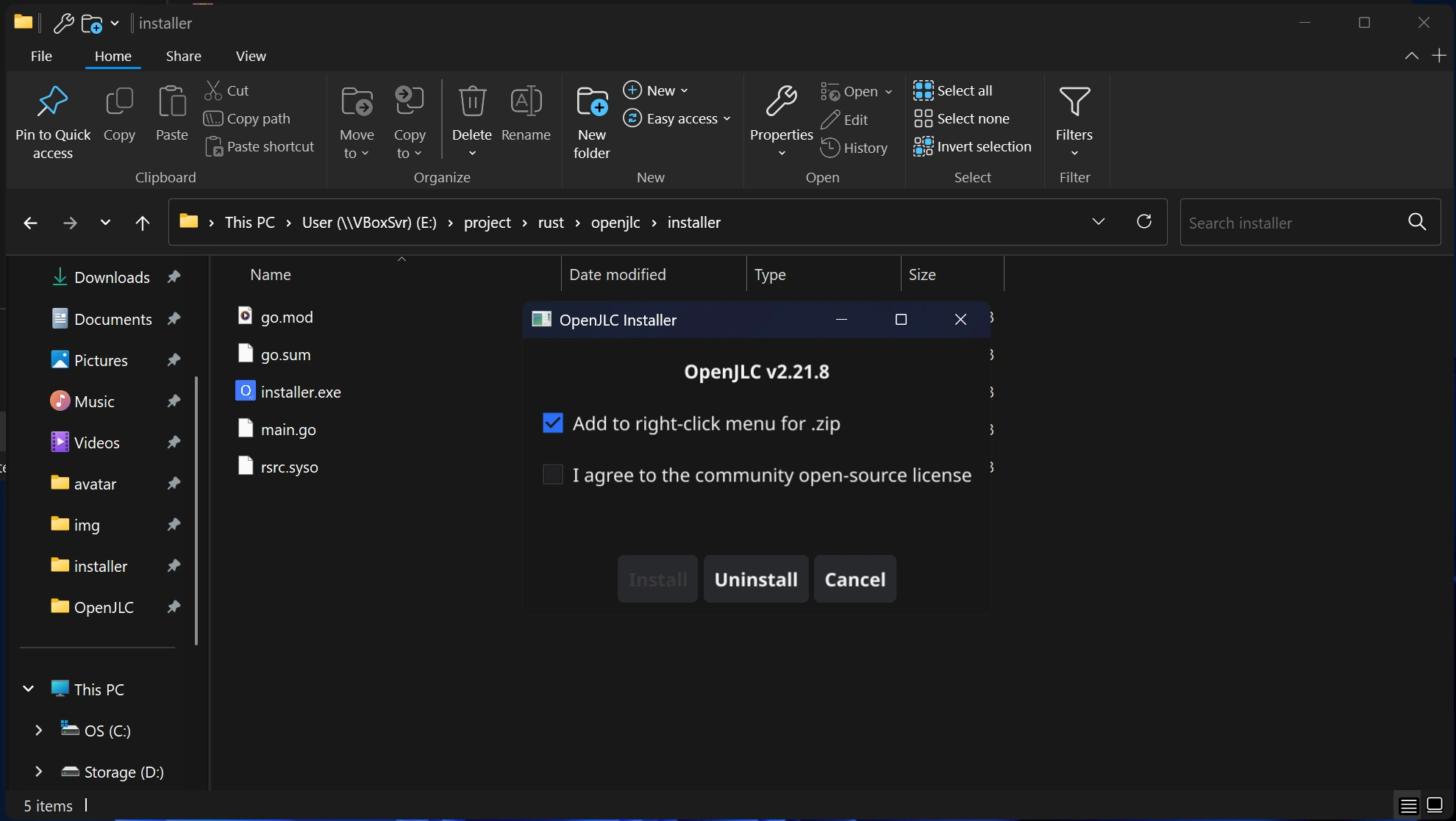
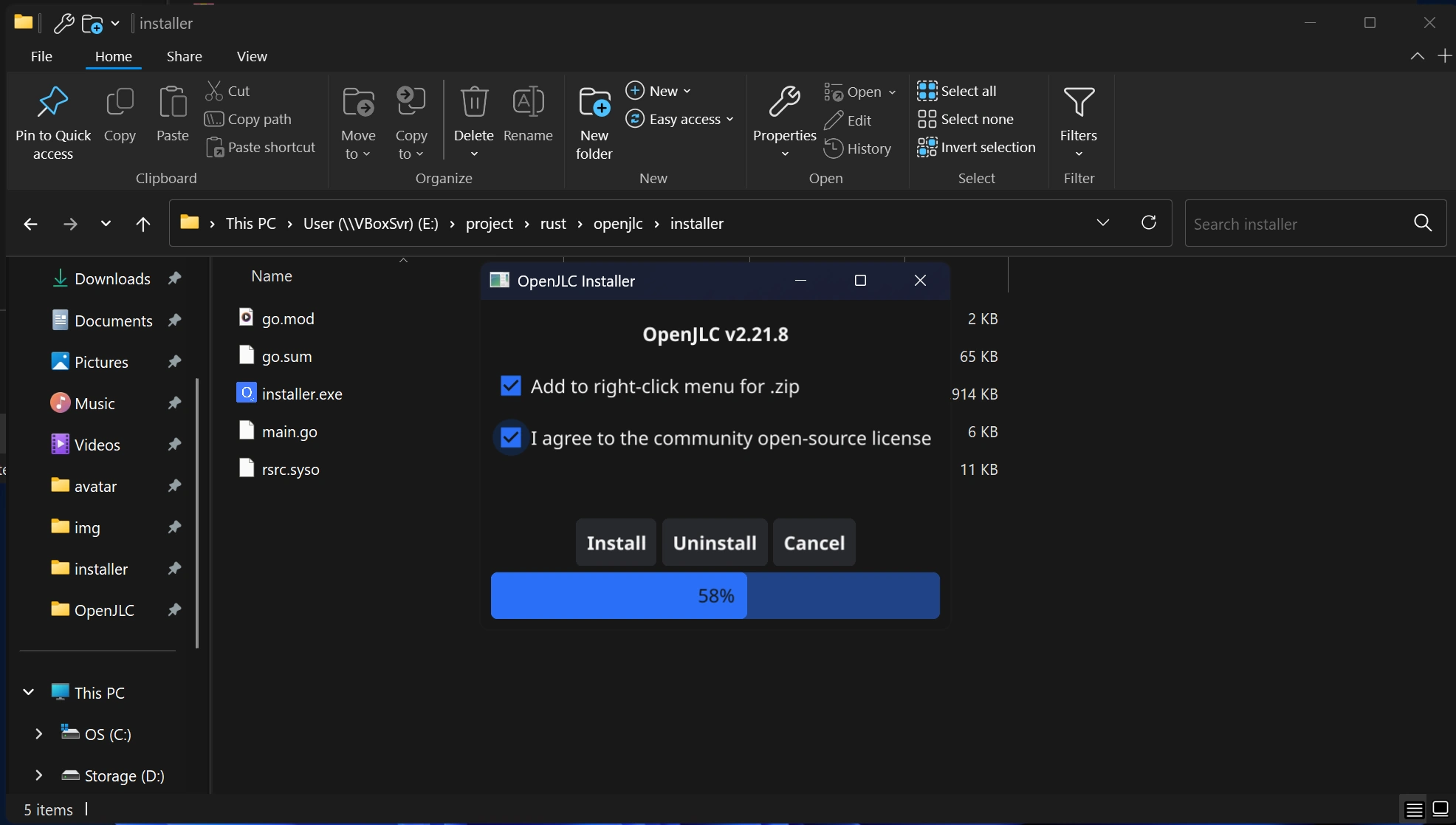
We offer a dedicated Windows GUI installer to simplify setup. With just a few clicks, you can install, update, or uninstall OpenJLC — all without touching the command line.
请注意 GUI 版本的安装器已经废弃⚠️ 不保证未来可用,未来也不会再给 Windows 的任何系统做更新,任何来自 Windows 的兼容性文件都自己 Ask AI, 垃圾 Windows 什么时候死啊
关于软件本体,也不会在 Windows 上测试,但是得益于这个软件开发的比较早了,横跨了我主力操作系统为 Windows Linux macOS 的三个阶段,所以理所应道的埋下了跨平台的种子,理论上虽然我没有测试,但是函数都有对应的 crates 维护好了,所以应该也能直接用
❓ FAQ
常见问题解答
Q: PowerShell says openjlc is not recognized as a command?
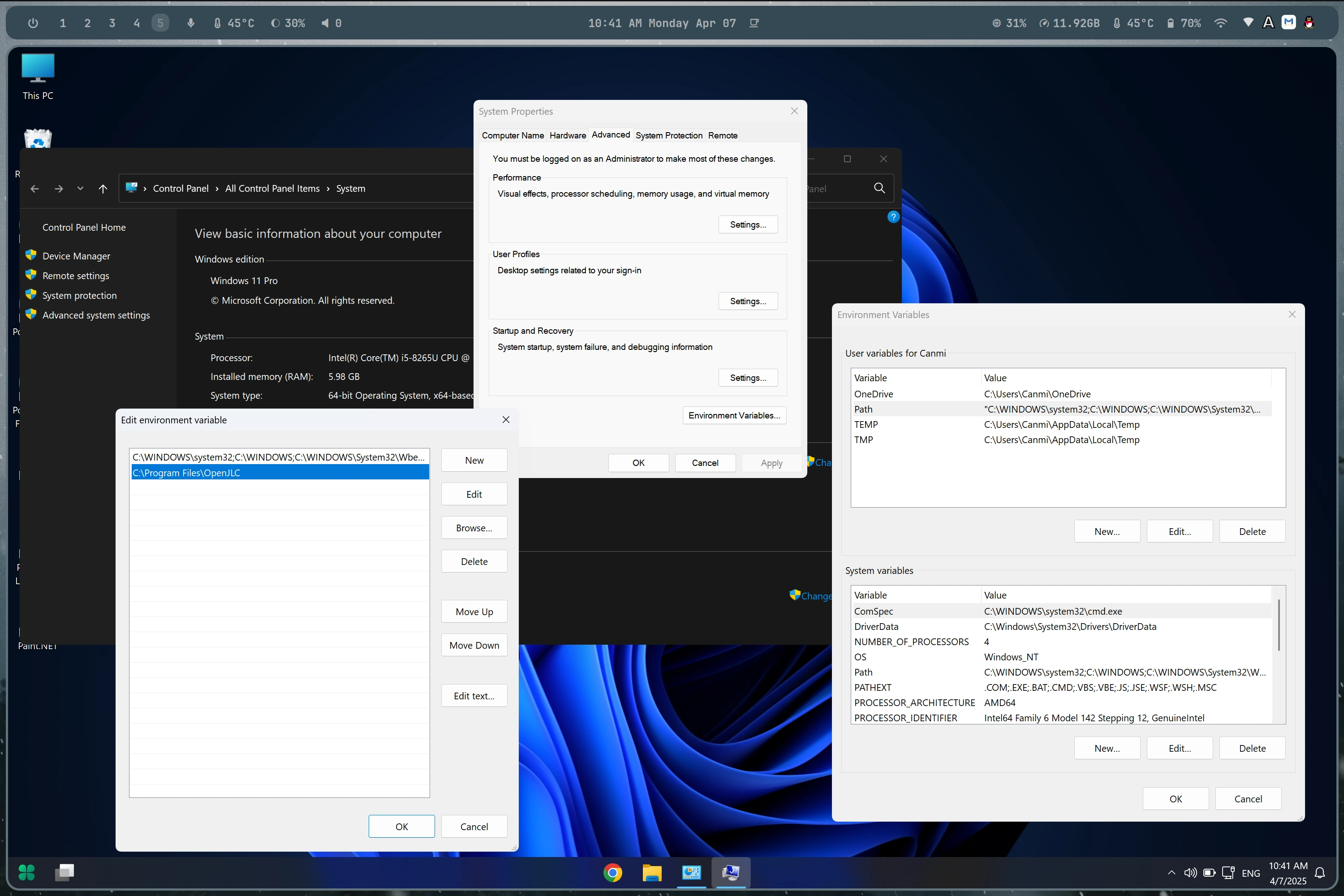
A: This usually means the OpenJLC installation path is not added to your system's environment variables.
Please follow the instructions shown in the image below to add it. Restart PowerShell after applying the changes.
Q: PowerShell 报错 openjlc 未被识别为命令?
A: 因为 OpenJLC 安装路径未添加到您的系统环境变量中。请按照下图所示的说明添加它。应用更改后重新启动 PowerShell。
Q: What if I'm using Linux or macOS?
A: Make sure the Cargo binary directory (usually $HOME/.cargo/bin) is added to your shell's environment variables.
For example, if you're using bash, zsh or fish, you can add the following line to your ~/.bashrc, ~/.zshrc ~/.config/fish/config.fish file:
Q: 如果我使用 Linux 或 macOS 呢?
A: 确保 Cargo 二进制目录(通常为 $HOME/.cargo/bin)添加到您的 shell 环境变量中。例如,如果您使用 bash、zsh 或 fish,可以将以下行添加到您的 ~/.bashrc、~/.zshrc 或 ~/.config/fish/config.fish 文件中:
export PATH="$HOME/.cargo/bin:$PATH"
Then reload your shell or run:
source ~/.bashrc # or source ~/.zshrc
If you're using fish shell, add the path like this:
set -U fish_user_paths /home/canmi/.cargo/bin $fish_user_paths
And reload the config:
source ~/.config/fish/config.fish
⭐ Contribute
If you are just a user of OpenJLC, please give us a Star. If you’d like to participate in development, you can consider the following steps: The main program is written in Rust:
cargo run
cargo build
cargo install --path .
The Windows installer is written in Go:
GOOS=windows GOARCH=amd64 CGO_ENABLED=1 CC=x86_64-w64-mingw32-gcc go build -x -ldflags="-H=windowsgui" -o installer.exe
cargo run
cargo build
cargo install --path .
GOOS=windows GOARCH=amd64 CGO_ENABLED=1 CC=x86_64-w64-mingw32-gcc go build -x -ldflags="-H=windowsgui" -o installer.exe
Additionally, there is an old version written in Python here. The source code is still visible but is no longer maintained or used.
✨ Insights
