thag_styling
| Crates.io | thag_styling |
| lib.rs | thag_styling |
| version | 0.2.1 |
| created_at | 2025-10-17 06:12:23.76196+00 |
| updated_at | 2025-10-17 16:13:19.054323+00 |
| description | Terminal styling system with theme support and color detection for thag_rs |
| homepage | |
| repository | https://github.com/durbanlegend/thag_rs |
| max_upload_size | |
| id | 1887213 |
| size | 1,136,681 |
 Don Forbes (durbanlegend)
documentation
README
thag_styling



An innovative terminal styling system for Rust applications across platforms.
-
Automatically selects the right color and style for each message type - headings, errors, code, normal etc. - based on a popular or original theme.
-
Legible, elegant coloring and styling adapt automatically to fit any background color and match any terminal theme.
-
Matches the current terminal theme using a THAG_THEME environment variable that you can configure in the terminal profile. The fallback is to select from your configured preferred themes by finding a best fit with the detected background color.
-
Built-in support for over 290 popular terminal themes.
-
Minimal overhead due to compile-time resolution of built-in themes.
-
Built-in integrations make it easy to apply the current terminal theme to
crossterm,console,inquire,nu-ansi-termandreedline,owo-colorsandratatui. -
Supports TrueColor, 256-color or 16-color emulators with auto-detection.
-
Works with the most popular terminal emulators on Mac, Windows and Linux. Tested on Alacritty, Apple Terminal, Gnome Terminal, iTerm2, Kitty, KDE Konsole, Mintty (Git Bash and Cygwin), VS Code, WezTerm, Windows Terminal (PowerShell, WSL Ubuntu and Command Prompt) and Zed. Should work with any emulator that supports the OSC ANSI escape sequences for color setting.
-
A collection of tools lets you:
-
Convert base16 or base24 terminal themes to
thag_stylingthemes and save them in a directory of your choice for run-time loading, or as built-ins if you build the project yourself. -
Export and deploy
thag_stylingthemes as new terminal themes for all supported terminal emulators. -
Effectively apply
thag_stylingthemes as terminal themes on the fly or in the terminal profile, for any terminal emulator that supports the OSC 4 and OSC 10 ANSI escape sequences. -
Generate gorgeous
thag_stylingand terminal themes automatically from your favourite images, and tweak them if you wish.
-
thag_styling builds upon the foundation of popular terminal themes like Solarized, Gruvbox, Dracula, Nord, and Base16 variants, providing a comprehensive library of 290+ curated themes plus over a dozen original creations. Instead of hardcoding colors, you define content by semantic meaning (warnings, code, headings, and 11 other message categories), and the library automatically applies coordinated 15-color palettes that work beautifully across all terminal environments. It includes powerful tools for creating stunning new themes and exporting them to popular terminal emulators.
Examples of built-in themes
Here is a small sample of the 300+ built-in thag_styling themes, with descriptive captions. The thag conversion and image extraction tools automatically ensure that each message style has sufficient contrast with the background to be clearly legible.
Built-in popular dark theme: Catppuccin Mocha
[ ]
(https://durbanlegend.github.io/thag_rs/thag_styling/assets/catppuccin-mocha.png)
Built-in theme
]
(https://durbanlegend.github.io/thag_rs/thag_styling/assets/catppuccin-mocha.png)
Built-in theme catppuccin-mocha, converted from base24.

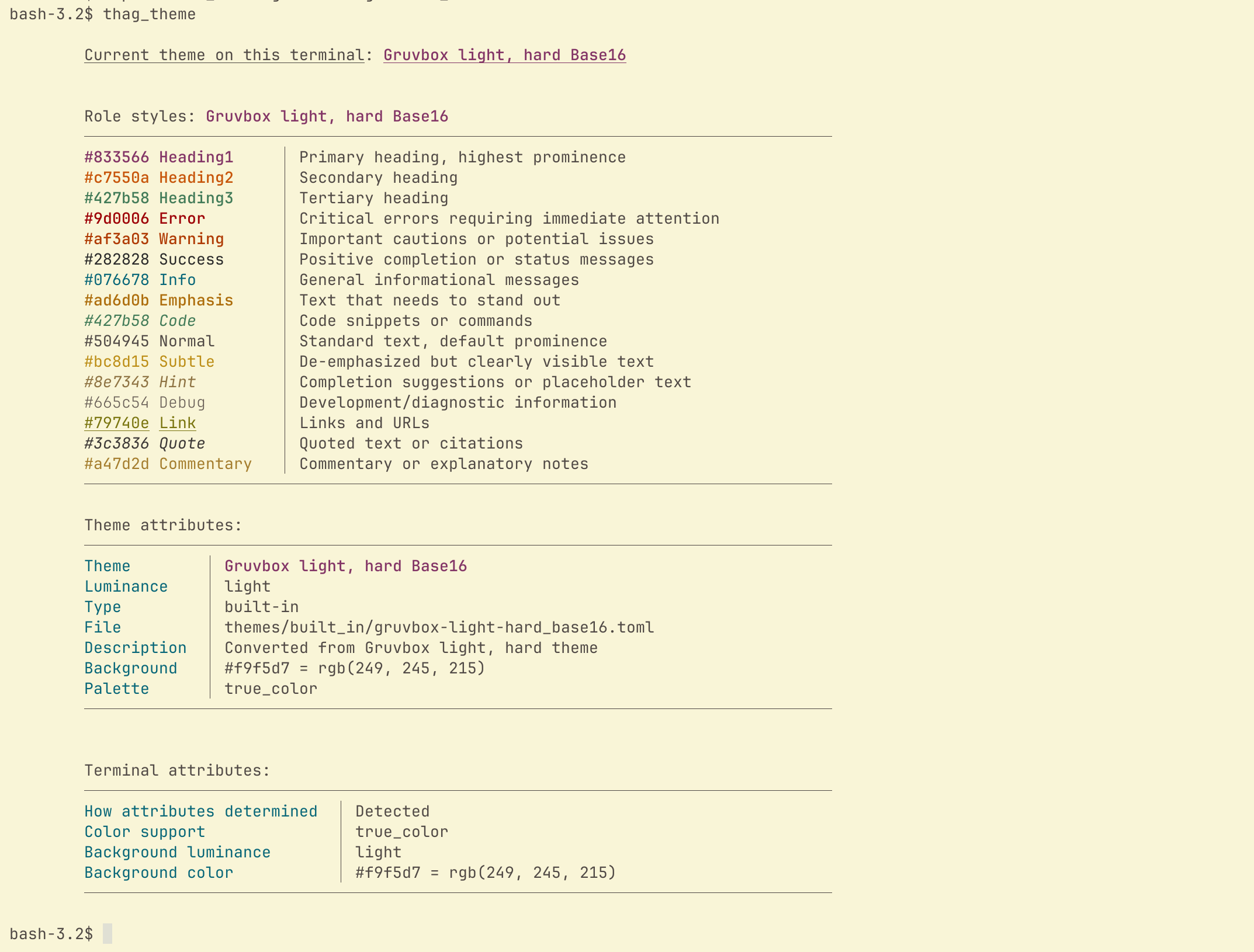
Built-in popular light theme: Gruvbox Light Hard
[ ]
(https://durbanlegend.github.io/thag_rs/thag_styling/assets/gruvbox-light-hard_base16.png)
Built-in theme
]
(https://durbanlegend.github.io/thag_rs/thag_styling/assets/gruvbox-light-hard_base16.png)
Built-in theme gruvbox-light-hard_base16, converted from base16.
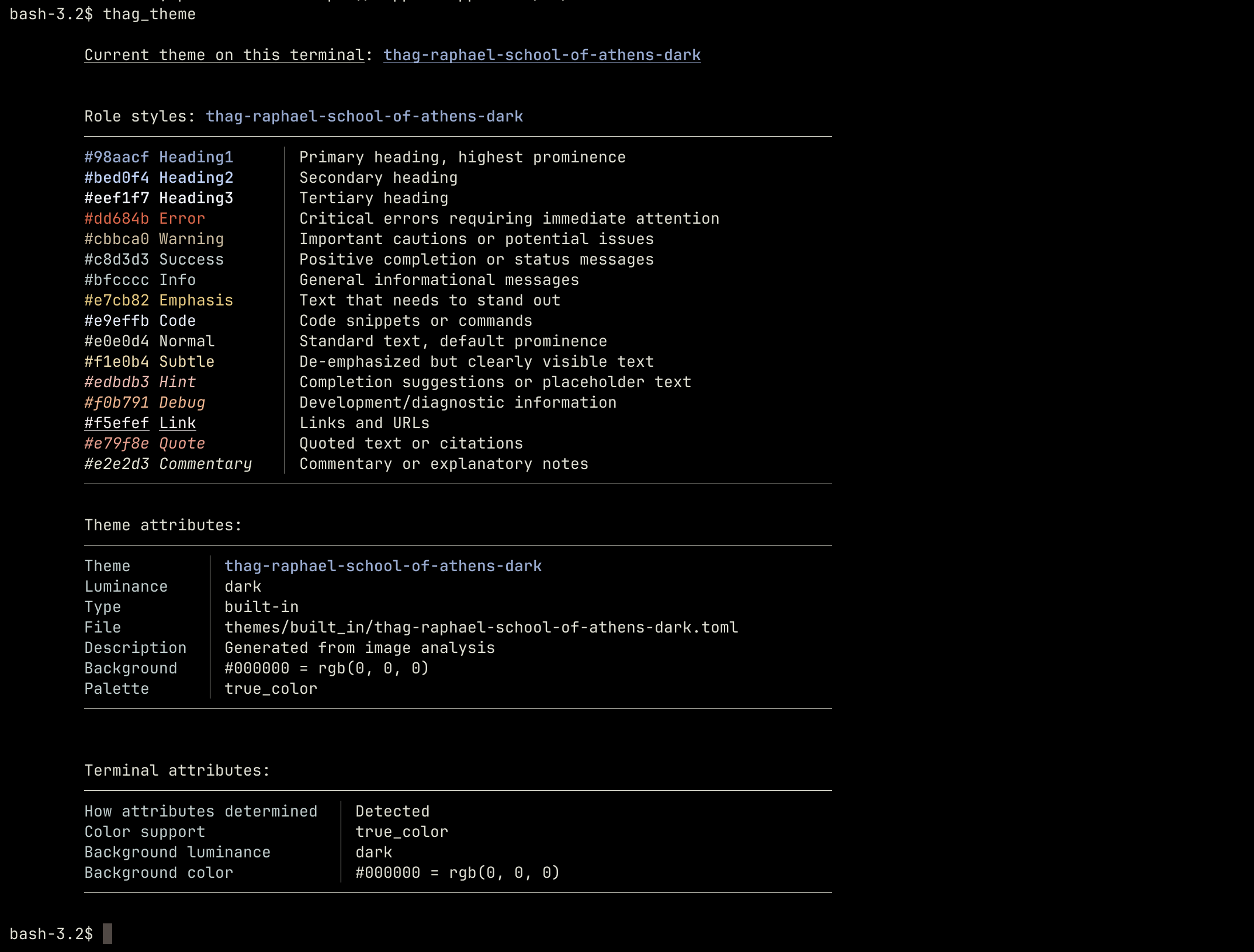
Built-in original dark theme: Raphael's School of Athens
[ ]
(https://durbanlegend.github.io/thag_rs/thag_styling/assets/thag-raphael-school-of-athens-dark.png)
Built-in theme
]
(https://durbanlegend.github.io/thag_rs/thag_styling/assets/thag-raphael-school-of-athens-dark.png)
Built-in theme thag-raphael-school-of-athens-dark, generated with thag_image_to_theme from a PNG of the painting by Raphael.
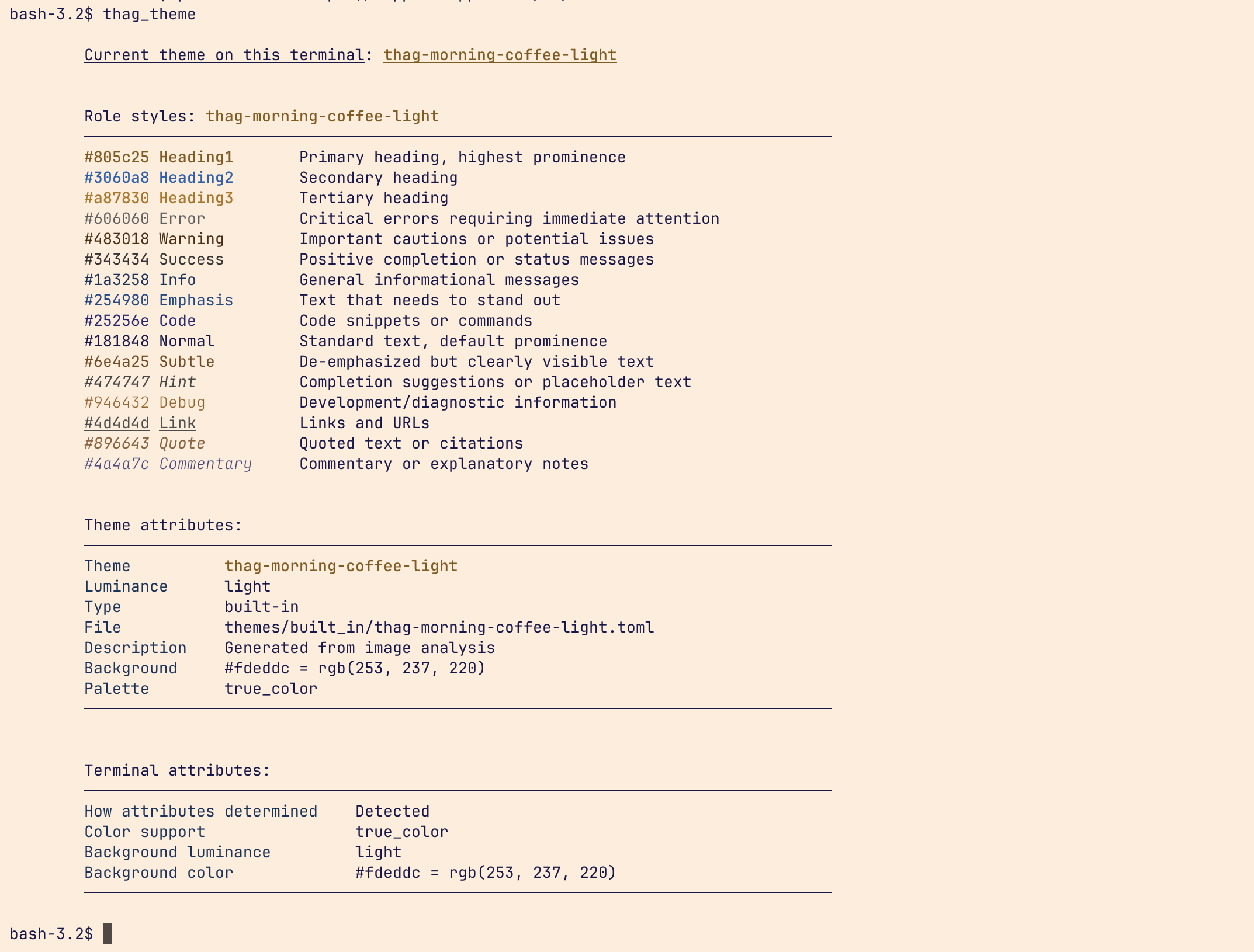
Built-in original light theme: Morning Coffee Light
[ ]
(https://durbanlegend.github.io/thag_rs/thag_styling/assets/thag-morning-coffee-light.png)
Built-in theme
]
(https://durbanlegend.github.io/thag_rs/thag_styling/assets/thag-morning-coffee-light.png)
Built-in theme thag-morning-coffee-light, generated with thag_image_to_theme from a PNG of a complementary blue-brown color palette created with the Figma color wheel.
Features
Core Styling System
- 🚦 Semantic Roles — Style by meaning (
Role::Error,Role::Success) not colors - 🔍 Automatic Detection — Terminal capabilities and theme selection
- 🎨 Rich Palettes — Coordinated 15-color schemes for TrueColor/256-color spectrums
- 👓 Proven Legibility — Based on tested terminal themes with proper contrast
- 🪶 Zero Overhead — Compile-time theme resolution
Styling APIs
StyledString— Fluent method chaining:"text".error().println()- Styled Macros — Direct printing:
sprtln!(Role::Warning, "Alert: {}", msg) - Paint Functions — Functional style:
paint_for_role(Role::Code, code) - ANSI Macros — Enhanced styling:
styled!("text", fg = "#ff0000", bold)
Library Integrations
- Ratatui — Complete TUI theming with
Style::themed(Role::Error) - Crossterm — Terminal manipulation with themed helpers
- Console — Popular styling library integration
- Inquire — Theming for terminal prompts
- Nu-ANSI-Term — Shell and REPL theming support
- Owo-Colors — Popular colorizing and styling crate.
Theme Ecosystem
- 300+ Theme Library — Solarized, Gruvbox, Dracula, Nord, Monokai, Cattpucin and many more
- Theme Generation — From images using advanced color extraction
- Multi-Format Export — Alacritty, iTerm2, Kitty, KDE Konsole, Mintty (Git Bash and Cygwin), WezTerm, Windows Terminal. Except for Konsole and Mintty, these and additional OSC-compatible terminals are also supported by the
thag_sync_palettecommand below, which can be invoked from the terminal profile file, for example Apple Terminal, GNOME Terminal, VS Code and Zed. - Palette Sync — Runtime terminal palette updates via OSC sequences
- Base16/Base24 — Converts standard Base16/Base24 themes to thag format (290+ themes included)
Quick Start
Add thag_styling to your Cargo.toml:
[dependencies]
thag_styling = "0.2"
Basic usage:
use thag_styling::{Styleable, StyledPrint};

fn main() {
    // Fluent method chaining - natural and composable
    "✅ Operation completed successfully".success().println();
    "❌ Connection failed".error().println();
    "⚠️  High memory usage detected".warning().println();
    "thag --release".code().println();

    // Works with any Display type
    42.success().println();              // Numbers
    std::path::Path::new("/usr/bin").display().code().println(); // Paths
}
Why thag_styling?
🎨 Effortless Aesthetics
Instead of manually selecting and coordinating colors, thag_styling provides carefully curated 15-color palettes that work harmoniously together. Each palette is designed with proper contrast ratios and visual hierarchy.
Before:
// Manual color coordination - error prone
println!("{}", "Error".red().bold());
println!("{}", "Warning".yellow());
println!("{}", "Success".green());
// Do these colors work well together? 🤷
After:
// Semantic coordination - guaranteed harmony
"Error".error().println();
"Warning".warning().println();
"Success".success().println();
// Perfect color coordination automatically ✨
👀 Assured Legibility
All themes use proven color combinations from established terminal themes, ensuring text remains readable across different terminal backgrounds and lighting conditions.
⚡ Reduced Development Time
Focus on your application logic instead of color theory. Define content semantically once, and thag_styling handles the visual presentation across all terminal environments.
Library Integrations
thag_styling integrates seamlessly with popular terminal libraries:
Ratatui TUI Integration
use thag_styling::integrations::ThemedStyle;
use ratatui::{style::Style, widgets::Gauge};

// Semantic TUI styling
let error_style = Style::themed(Role::Error);
let success_gauge = Gauge::default()
    .gauge_style(Style::themed(Role::Success))
    .block(Block::default()
        .border_style(Style::themed(Role::Subtle))
        .title_style(Style::themed(Role::Heading2)));

// Cargo.toml: features = ["ratatui_support"]
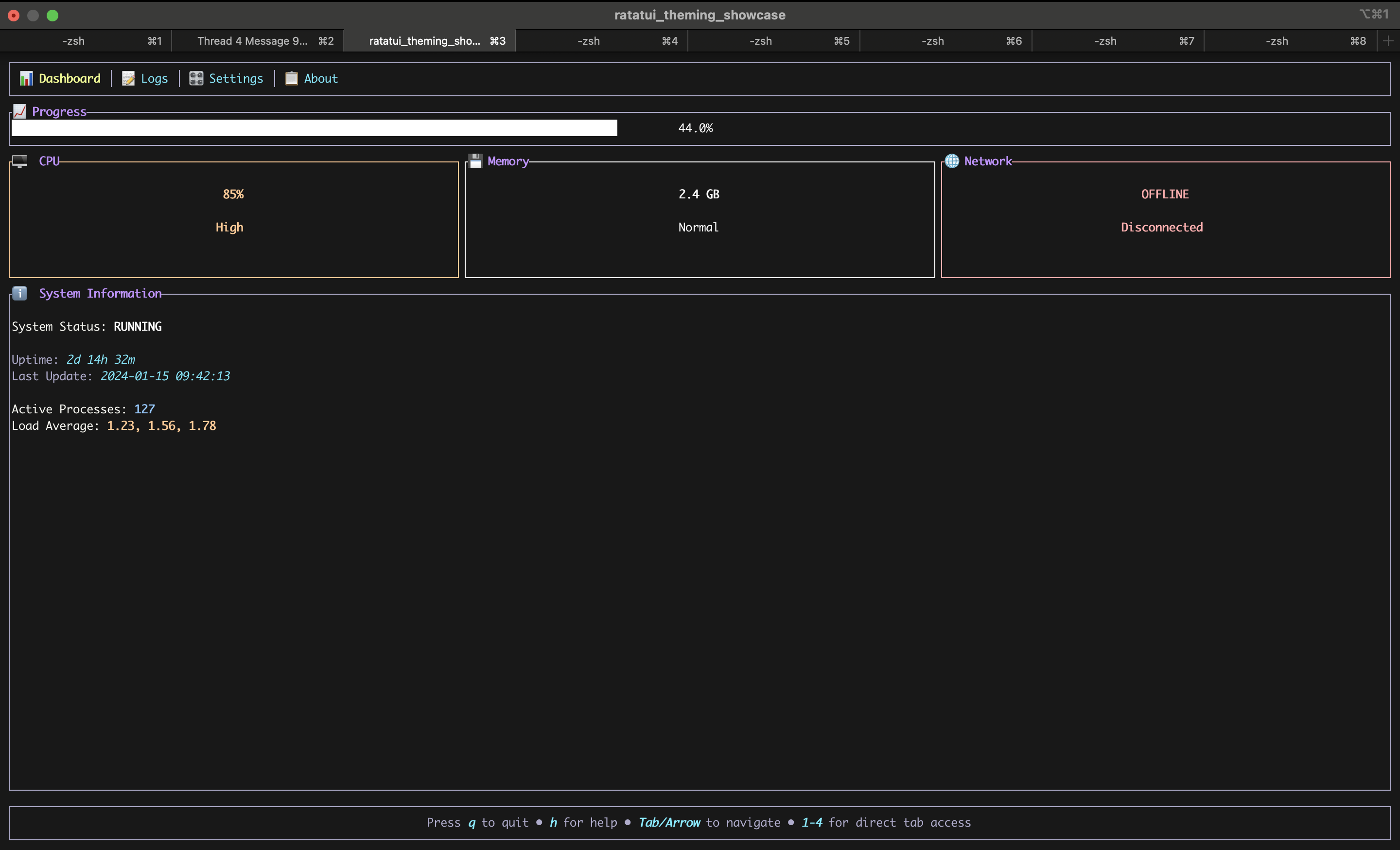
Example: Ratatui Theming Showcase with dracula-base16 theme
[ ]
(https://durbanlegend.github.io/thag_rs/thag_styling/assets/ratatui_theming_showcase_dracula_base16.png)
Using thag_url with
]
(https://durbanlegend.github.io/thag_rs/thag_styling/assets/ratatui_theming_showcase_dracula_base16.png)
Using thag_url with THAG_THEME=dracula_base16 to run the Ratatui Theming Showcase straight from the repo: thag_url https://github.com/durbanlegend/thag_rs/blob/develop/thag_styling/examples/ratatui_theming_showcase.rs.
Multiple API Styles
// Method chaining (recommended)
format!("Status: {} | Memory: {}", "OK".success(), "85%".warning())
    .info().println();

// Styled print macros
sprtln!(Role::Error, "Connection failed: {}", error_msg);
svprtln!(Role::Debug, Verbosity::Debug, "Processing {}", item);

// Functional style
println!("{}", paint_for_role(Role::Code, "fn main()"));

// Low-level ANSI with enhanced color support
use thag_styling::styled;
println!("{}", styled!("Alert", fg = Red, bold, underline));          // Basic ANSI
println!("{}", styled!("Custom", fg = Rgb(255, 165, 0), italic));     // RGB orange
println!("{}", styled!("Palette", fg = Color256(93), bold));          // 256-color purple
println!("{}", styled!("Hex", fg = "#ff6347", underline));            // Hex tomato
Semantic Roles
thag_styling provides a comprehensive set of semantic roles:
| Role | Purpose | Example Usage |
|---|---|---|
Heading1, Heading2, Heading3 |
Document structure | Section titles, command help headers |
Error, Warning, Success |
Status messages | Operation results, validation feedback |
Info |
General information | Status updates, notifications |
Code |
Technical content | Commands, file paths, identifiers |
Emphasis |
Important content | Key points, highlighted text |
Normal |
Default text | Body content, descriptions |
Subtle |
De-emphasized content | Timestamps, metadata, borders |
Quote, Link |
Special content | Citations, URLs |
Debug |
Development info | Diagnostic output, verbose logging |
Terminal Compatibility
thag_styling automatically adapts to your terminal's capabilities:
- TrueColor terminals (16M colors) — Full RGB palette with rich gradients
- 256-color terminals — Carefully mapped colors maintaining theme integrity. Themes are stored as TrueColor and automatically mapped to the closest color in the 256-color palette.
- Basic terminals (16 colors) — Graceful fallback to standard ANSI colors
- Monochrome terminals — Uses styling attributes (bold, italic, underline)
Selection Colors Configuration
When exporting themes to terminal formats, thag_styling automatically configures selection colors (the background and foreground colors used when you select text in your terminal). However, some terminals may require manual configuration or have specific settings to enable these colors.
Automatic Configuration
The following terminals fully support selection color import from exported theme files:
- WezTerm — Selection colors import automatically
- Windows Terminal —
selectionBackgroundis set in exported themes - Mintty —
SelectionBackgroundColourandSelectionForegroundColourare exported - Kitty — Selection colors import from exported config files
- Alacritty — Selection colors import from YAML/TOML config files
Manual Configuration Required
iTerm2 (macOS)
- Selection colors are exported and will import correctly
- Important: You must enable "Use custom color for selected text" in iTerm2 preferences
- Open iTerm2 → Preferences → Profiles → Colors
- After importing a theme, check ☑ "Use custom color for selected text"
- This enables the selection foreground color for better contrast
Apple Terminal (macOS)
- Does not support importing selection colors from theme files
- Selection colors can be set via OSC 17 escape sequences (see below)
- Manual configuration: Terminal → Preferences → Profiles → Text → Selection Color
KDE Konsole
- Selection colors are dynamically calculated from foreground/background colors
- To improve visibility: Appearance → Miscellaneous → ☑ "Always invert the colors of selected text"
- This uses reverse video for selections instead of custom colors
Dynamic Selection Colors via OSC Sequences
The thag_sync_palette tool sets selection colors dynamically using OSC escape sequences:
- OSC 17 — Sets selection background color
- OSC 19 — Sets selection foreground color
These sequences are supported by:
- ✅ Gnome Terminal
- ✅ WezTerm
- ✅ iTerm2
- ✅ Kitty
- ✅ Apple Terminal (OSC 17 only)
- ✅ WSL Ubuntu Terminal
- ❌ Alacritty (no OSC selection support)
To apply selection colors dynamically:
thag_sync_palette apply <theme-name>
This updates your terminal's palette including selection colors for the current session.
Selection Color Design
All exported themes use the following color strategy for optimal readability:
- Selection Background: Uses the theme's
commentarycolor, which is automatically enhanced to provide at least 11:1 contrast ratio against the background - Selection Foreground: Uses the theme's
normaltext color for consistency
This ensures excellent visibility of selected text across all theme variants.
Advanced Features
Complex Nested Styling
use thag_styling::{Styleable, StyledPrint};

// Unlimited nesting with method chaining
format!("Server {} responded with {} in {}ms",
        server_name.emphasis(),
        format!("HTTP {}", status_code.success()),  // Nested styling
        latency.code())
    .info()
    .println();

// Verbosity-controlled output
format!("Debug: {}", diagnostic_data.code())
    .debug()
    .vprintln(Verbosity::Debug);
Theme Generation from Images
// Generate themes from any image (requires 'image_themes' feature)
use thag_styling::image_themes::generate_theme_from_image;

let theme = generate_theme_from_image("sunset.jpg", "my-sunset-theme")?;
theme.save_to_file("themes/my-sunset-theme.toml")?;
Multi-Format Theme Export
use thag_styling::{export_theme_to_file, ExportFormat};

let theme = Theme::load_from_file("my-theme.toml")?;

// Export to various terminal formats (alphabetically)
export_theme_to_file(&theme, "alacritty.toml", ExportFormat::Alacritty)?;
export_theme_to_file(&theme, "iterm2.itermcolors", ExportFormat::ITerm2)?;
export_theme_to_file(&theme, "kitty.conf", ExportFormat::Kitty)?;
export_theme_to_file(&theme, "mintty.config", ExportFormat::Mintty)?;
export_theme_to_file(&theme, "wezterm.toml", ExportFormat::WezTerm)?;
export_theme_to_file(&theme, "windows-terminal.json", ExportFormat::WindowsTerminal)?;
Runtime Palette Synchronization
use thag_styling::PaletteSync;

// Sync terminal palette with theme colors (programmatically)
let sync = PaletteSync::new()?;
sync.apply_theme_palette(&theme)?;
// Terminal colors now match your theme!
For terminals that don't support theme files (like Apple Terminal), you can use shell integration to automatically sync palettes on startup:
Unix shells (~/.bashrc or ~/.zshrc):
if [[ "$TERM_PROGRAM" == "Apple_Terminal" ]]; then
    export THAG_COLOR_MODE=256
    export THAG_THEME=thag-botticelli-birth-of-venus-dark
    thag_sync_palette apply $THAG_THEME
elif [[ "$TERM_PROGRAM" == "WezTerm" ]]; then
    export THAG_COLOR_MODE=truecolor
    export THAG_THEME=thag-raphael-school-of-athens-dark
    thag_sync_palette apply $THAG_THEME
fi
Windows PowerShell ($PROFILE):
$env:PATH += ";C:\Users\my_name\.rustup\toolchains\stable-x86_64-pc-windows-msvc\bin"
$env:THAG_COLOR_MODE = "truecolor"
$env:THAG_THEME = "thag-morning-coffee-light"
thag_sync_palette apply $THAG_THEME
Terminal Attribute Contexts
use thag_styling::{ColorSupport, TermAttributes, TermBgLuma, Theme};

// Create custom terminal attributes for testing or special scenarios
let custom_theme = Theme::get_builtin("basic_dark")?;
let test_attrs = TermAttributes::for_testing(
    ColorSupport::Basic,
    Some((64, 64, 64)),  // Background RGB
    TermBgLuma::Dark,
    custom_theme,
);

// Execute code with temporary attributes context
test_attrs.with_context(|| {
    // All styling within this block uses the custom attributes
    let current = TermAttributes::current();
    println!("Color support: {:?}", current.color_support);
    println!("Theme: {}", current.theme.name);

    // Styling automatically uses the context attributes
    "Test message".error().println();

    // Contexts can be nested
    other_attrs.with_context(|| {
        "Nested context message".success().println();
    });
});

// Global attributes restored outside context
Theme Contexts
use thag_styling::{Styleable, StyledPrint, Theme};

// Load guest themes without changing the global theme
let dark_theme = Theme::get_builtin("dracula")?;
let light_theme = Theme::get_builtin("github")?;

// Method 1: Direct theme styling (most efficient)
dark_theme.error("Dark theme error message").println();
light_theme.success("Light theme success message").println();

// Method 2: Context switching (most ergonomic for styling blocks)
dark_theme.with_context(|| {
    // All .role() methods now use the dark theme
    "Error in dark theme context".error().println();
    "Success in dark theme context".success().println();

    format!(
        "Complex: {} | {} | {}",
        "OK".success(),
        "Warning".warning(),
        "Error".error()
    ).normal().println();
});

// Mixed usage example
dark_theme.with_context(|| {
    format!(
        "Status: {} | Config: {} | Result: {}",
        "Running".info(),                    // Uses dark theme context
        light_theme.code("config.toml"),    // Direct light theme method
        "Complete".success()                 // Uses dark theme context
    ).normal().println();                   // Uses dark theme context
});

// Nested theme contexts
dark_theme.with_context(|| {
    "Outer context (dark)".heading1().println();

    light_theme.with_context(|| {
        "Inner context (light)".heading2().println();
    });

    "Back to outer (dark)".heading2().println();
});
Examples
The library includes comprehensive examples:
- Basic Usage — Simple semantic styling
- Ratatui Showcase — Full TUI application with themed components
- Library Integrations — Usage patterns with different terminal libraries
- Custom Themes — Creating and loading custom color schemes
Run examples
# Complete styling system demonstration
thag demo/styling_migration_guide.rs

# Interactive TUI showcase (full-featured application)
thag --example ratatui_theming_showcase --features "ratatui_support" -p thag_styling

# Quick integration demo
thag demo/ratatui_integration_demo.rs

# Theme generation from images
thag demo/image_theme_generation.rs

# Enhanced styled! macro demonstration
thag demo/styled_macro_enhanced.rs

# View all examples
ls thag_styling/examples/ demo/
Theme Management Tools
thag_styling includes a comprehensive suite of command-line tools for theme management. These tools are part of the main thag_rs project and provide powerful theme generation, conversion, and management capabilities.
Installation
The tools are installed as part of thag_rs with the tools feature:
# Install from crates.io with tools
cargo install thag_rs --features tools

# Install from GitHub repository
cargo install --git https://github.com/durbanlegend/thag_rs thag_rs --features tools

# Or build from source
git clone https://github.com/durbanlegend/thag_rs
cd thag_rs
cargo install --path . --features tools
Note: The tools are part of thag_rs, not thag_styling directly. This allows them to integrate the full thag_rs ecosystem while being available to thag_styling users.
Theme Generation Tools
# Generate theme from image
thag_image_to_theme sunset.jpg my-sunset-theme

# Convert between theme formats
thag_convert_themes input-theme.toml output-format

# Generate terminal emulator themes
thag_gen_terminal_themes my-theme.toml --all-formats
Theme Management Tools
# Display available themes
thag_show_themes

# Apply theme and sync terminal palette
thag_theme my-theme-name
thag_sync_palette

# Show terminal palette and compare with current theme
thag_palette

# Compare terminal palette with selected theme
thag_palette_vs_theme

# Add themes to specific terminals (alphabetically)
thag_alacritty_add_theme my-theme.toml
thag_mintty_add_theme my-theme.toml      # Cygwin, Git Bash
thag_winterm_add_theme my-theme.toml     # Windows Terminal
Theme Development
# Detect terminal capabilities
thag_detect_term

# Test theme legibility
thag_legible my-theme.toml
Theme Editor: thag_edit_theme
Interactive theme editor for manual color role adjustments.
# Edit a theme interactively
thag_edit_theme --input themes/my-theme.toml

# Edit and save to different file
thag_edit_theme --input themes/original.toml --output themes/modified.toml
Features:
- Edit individual color roles
- Swap colors between two roles
- Preview all palette colors with visual feedback
- Reset changes before saving
- Automatic backup creation
See demo/theme_editor_demo.md for detailed usage examples.
Integration Examples
Complete TUI Application
See examples/ratatui_theming_showcase.rs for a 4-tab TUI demonstrating:
-
Dashboard with metrics and progress bars
-
Log viewer with semantic severity colors
-
Settings and configuration display- Comprehensive help system
All styled consistently using semantic roles.
Library Integration Patterns
// Ratatui - semantic TUI theming
let gauge = Gauge::default()
    .gauge_style(Style::themed(Role::Success))
    .label("Progress");

// Crossterm - terminal control with theming
let styled_text = crossterm_helpers::success_style()
    .apply("Operation completed");

// Console - popular styling library integration
let warning = console::Style::themed(Role::Warning)
    .apply_to("High CPU usage");

// Enhanced styled! macro with multiple color formats
println!("{}", styled!("Error", fg = Rgb(220, 50, 47), bold));        // RGB
println!("{}", styled!("Warning", fg = Color256(214), underline));    // 256-color
println!("{}", styled!("Success", fg = "#00ff00", italic));           // Hex
println!("{}", styled!("Info", fg = Blue, reversed));                 // Basic ANSI
Documentation
- API Documentation — Complete API reference
- Integration Guide — Library-specific examples and patterns
- Theme Development — Custom theme creation and tools
- Tool Reference — Command-line tool documentation
Contributing
Contributions will be considered if they fit the goals of the project.
Rust code should pass clippy::pedantic checks.
The following are of particular interest:
-
Additional terminal emulator export formats
-
More library integrations (such as.
indicatif) -
Theme collection expansion
License
This project is dual-licensed under either:
- MIT License (LICENSE-MIT or http://opensource.org/licenses/MIT)
- Apache License, Version 2.0 (LICENSE-APACHE or http://www.apache.org/licenses/LICENSE-2.0)
at your option.